> For the complete documentation index, see [llms.txt](https://docs.rapidproxy.io/llms.txt). Markdown versions of documentation pages are available by appending `.md` to page URLs; this page is available as [Markdown](https://docs.rapidproxy.io/troubleshooting/proxy-connection-problems/no-connection-on-dynamic-ips.md).
# No Connection on Dynamic IPs
Unable to connect using dynamic residential proxies? Learn common reasons for no connection issues and how to troubleshoot authentication, proxy settings, and network problems in Rapidproxy.
If you are experiencing connection failures or inability to connect when using **dynamic (rotating) residential proxies**, this troubleshooting guide will help you identify common causes and how to fix them.
Dynamic residential proxies can fail to connect for a number of reasons, including authentication issues, network configuration, or proxy settings.
***
### 1. Verify Authentication Method
#### **Username & Password Authentication**
If you are using a **username and password** to authenticate:
* Double-check that you copied the **correct username and password**
* Ensure there are **no hidden spaces** or typographical errors
* Verify credentials were generated for the correct sub-account
**Common mistake:**
Copying credentials for a different sub-account will cause a connection error.
***
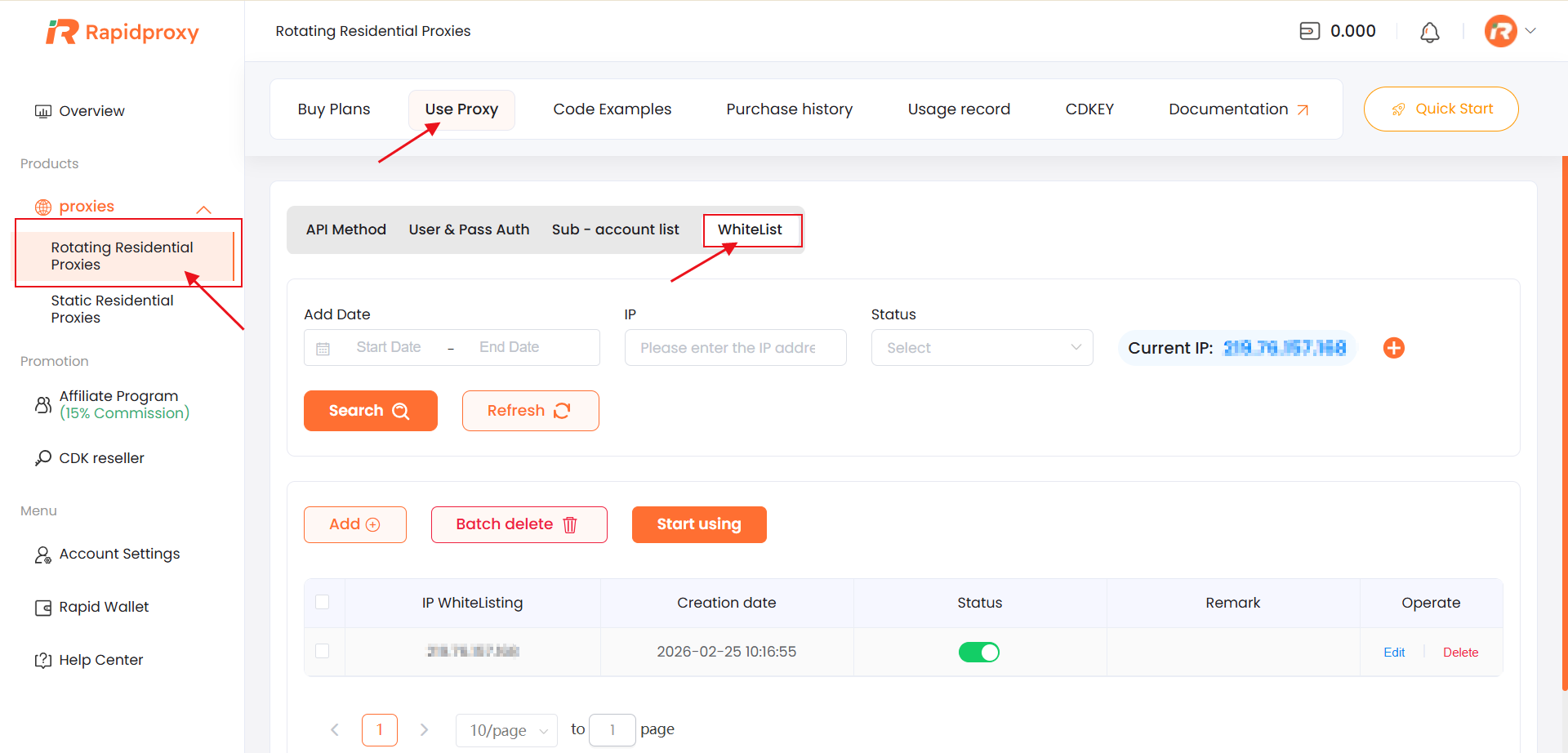
#### **IP Whitelisting Authentication**
If you are using **IP Whitelist** (no credentials required):
* Make sure the **outbound IP of your client/server** is added to the whitelist\
(UCenter → Proxies → Rotating Residential Proxies → Use Proxy → [WhiteList](https://docs.rapidproxy.io/proxies/dynamic-residential-proxy/get-proxy/api/ip-whitelisting))
* If your IP changes (for example on dynamic home networks), re-add the new IP
Requests from an unwhitelisted IP will be blocked, resulting in no proxy connection.
***
### 2. Check Proxy Endpoint and Port
Ensure that the proxy host and port are correct:
* Proxy Host / IP should match what you see in the **Use Proxy** section
* Port should match the protocol you selected (HTTP, HTTPS, or SOCKS5)
Incorrect host or port will cause connection failures.
***
### 3. Test Connection From a Simple Tool
Try a simple test using a tool such as `curl` to isolate environment issues:
```
curl -x http://YOUR_PROXY_HOST:YOUR_PORT https://example.com
```
If this returns no response or times out, the issue may be with:
* Network connectivity
* Firewall blocking
* Proxy authentication failure
***
### 4. Confirm Traffic Cap (Sub-Accounts)
If you are using sub-accounts:
* Confirm that the **traffic cap (GB)** has not been reached
* A sub-account with zero remaining traffic may not establish a connection
Check the current usage and available traffic from the sub-account list.
***
### 5. Verify Local Network and Firewall
Sometimes local network configuration can block proxy connections:
* Make sure your network allows outbound connections to the proxy host and port
* Check your firewall, antivirus, or corporate network policies
* If you are behind a restrictive network (office, school, etc.), try a different network
***
### 6. Check for Target Site Blocking
Some websites actively block known proxy IPs:
* Try accessing a different site or service to confirm if the issue is site-specific
* If only one target is failing, the proxy may be blocked by that specific site
***
### 7. Protocol Compatibility
Make sure the proxy protocol matches your client configuration:
* **HTTP / HTTPS** — used by most HTTP clients
* **SOCKS5** — needed by some tools and certain automation libraries
A protocol mismatch can result in no connection.
***
### 8. Try a Different Region or Server
Proxy connection success can vary by region or server:
* Switch to a different **country** or **proxy server location**
* Some regions may have temporary routing or performance issues
This can help isolate whether the issue is regional.
***
### 9. Debug With Logs
If your application supports logging:
* Enable detailed network logs
* Look for connection timeouts, refusals, or authentication errors
Logs can reveal whether the issue is DNS, timeout, or credential related.
***
### 10. Contact Support
If you’ve tried the steps above and still have no connection:
Please contact Rapidproxy support:
* **Online live chat** on the Rapidproxy website
* Email ****
When contacting support include:
* Proxy host and port
* Authentication method (username/password or IP whitelist)
* Client environment (OS, tool, library)
* Any error messages or log output
Support can help diagnose configuration or network issues.
***
### Quick Troubleshooting Checklist
| Issue | What to Check |
| -------------- | --------------------------------------------- |
| No connection | Credentials, whitelist, proxy host/port |
| Authentication | Username/password, IP whitelist |
| Local block | Firewall, antivirus, corporate network |
| Target site | Site blocking or specific restrictions |
| Protocol | Correct protocol selected (HTTP/HTTPS/SOCKS5) |
| Traffic cap | Sub-account quota reached |