> For the complete documentation index, see [llms.txt](https://docs.rapidproxy.io/llms.txt). Markdown versions of documentation pages are available by appending `.md` to page URLs; this page is available as [Markdown](https://docs.rapidproxy.io/simplified-mandarin/dai-li/ji-cheng-zhi-nan/dong-tai-zhu-zhai-dai-li/dolphin-anty.md).
# Dolphin Anty
### **步骤 1:登录**
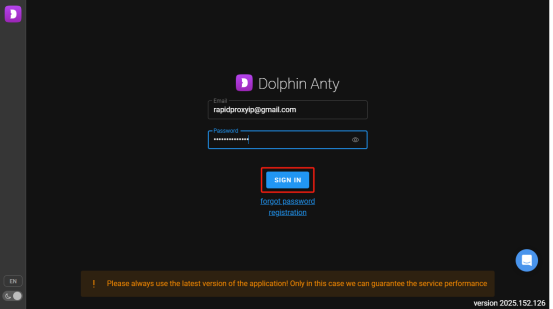
打开 Dolphin Anty 浏览器,点击 **【SIGN IN/登录】** 以访问您的账户。
 ### **步骤 2:创建浏览器配置文件**
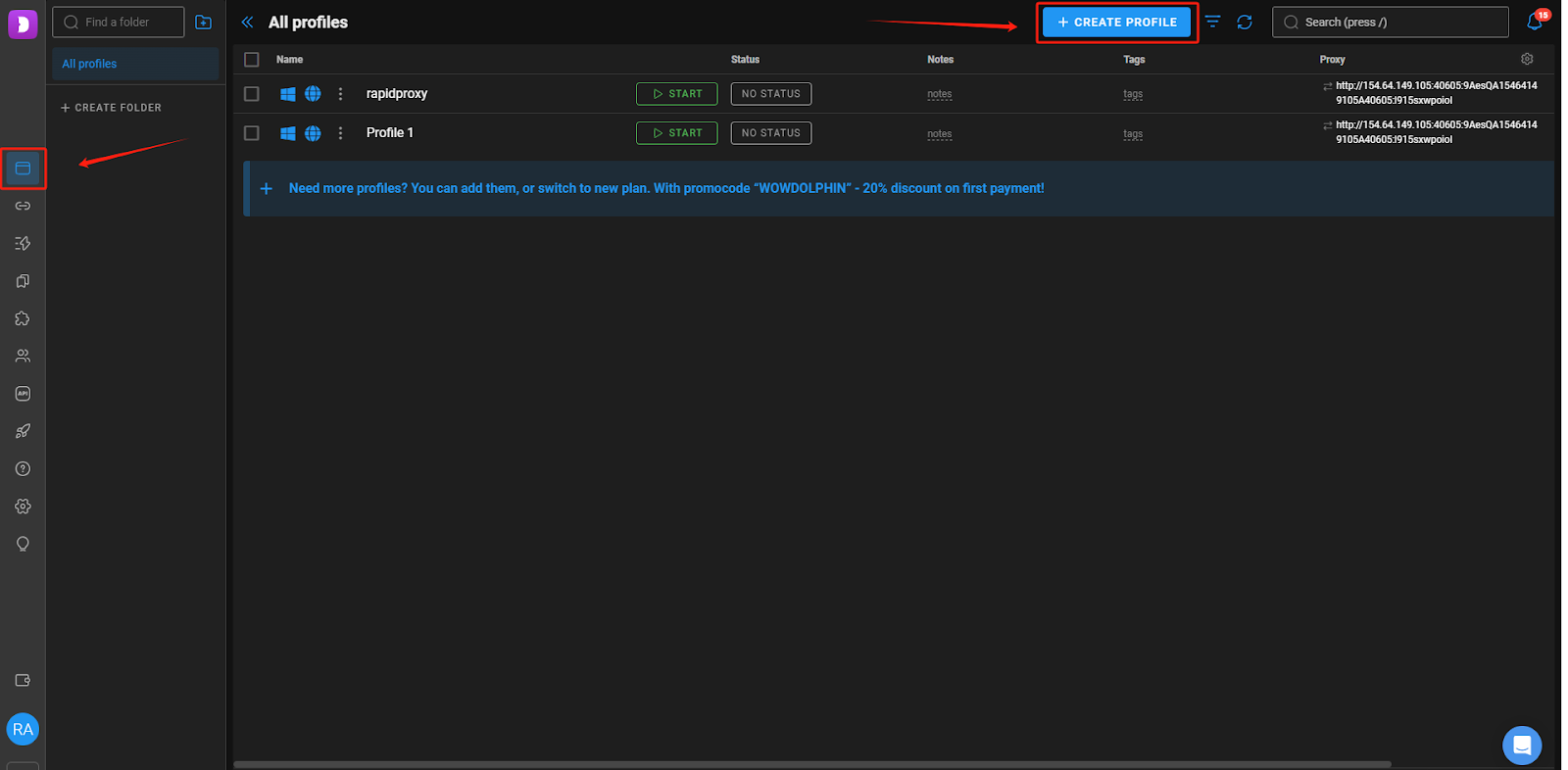
进入 **【Browser profiles/浏览器配置文件】** 页面,点击 **【+ CREATE PROFILE/+ 创建配置文件】** 开始新的配置。
### **步骤 2:创建浏览器配置文件**
进入 **【Browser profiles/浏览器配置文件】** 页面,点击 **【+ CREATE PROFILE/+ 创建配置文件】** 开始新的配置。
 ### **步骤 3:配置代理信息**
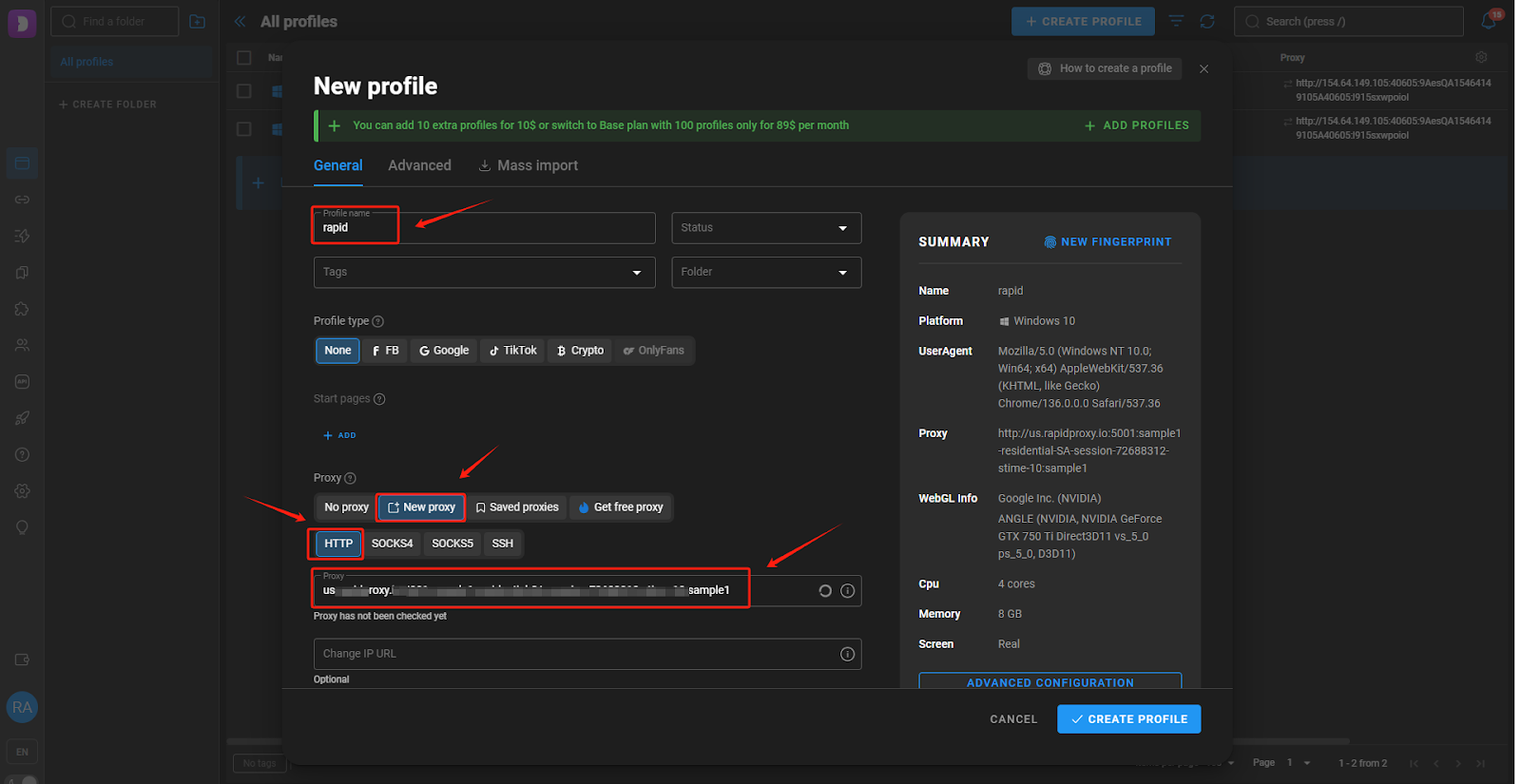
在新建配置文件窗口中:
* 输入您的 **【Profile name/配置文件名称】**(例如:rapid)
* 找到 **【New proxy/新代理】** 部分,选择 **【HTTP】** 作为代理协议。
* 将从 RapidProxy 获取的代理详情(IP、端口、用户名、密码)粘贴到相应字段中。
[如何通过 API 获取住宅代理?](/simplified-mandarin/dai-li/dong-tai-zhu-zhai-dai-li/huo-qu-dai-li/api/tong-guo-api-fang-shi-huo-qu-dai-li.md)
[如何通过用户名和密码认证获取住宅代理?](/simplified-mandarin/dai-li/dong-tai-zhu-zhai-dai-li/huo-qu-dai-li/yong-hu-ming-he-mi-ma-ren-zheng/pei-zhi-zhu-zhai-dai-li.md)
**注意**:本指南以 HTTP 为例。RapidProxy 支持 HTTP(S)& SOCKS5 协议。
### **步骤 3:配置代理信息**
在新建配置文件窗口中:
* 输入您的 **【Profile name/配置文件名称】**(例如:rapid)
* 找到 **【New proxy/新代理】** 部分,选择 **【HTTP】** 作为代理协议。
* 将从 RapidProxy 获取的代理详情(IP、端口、用户名、密码)粘贴到相应字段中。
[如何通过 API 获取住宅代理?](/simplified-mandarin/dai-li/dong-tai-zhu-zhai-dai-li/huo-qu-dai-li/api/tong-guo-api-fang-shi-huo-qu-dai-li.md)
[如何通过用户名和密码认证获取住宅代理?](/simplified-mandarin/dai-li/dong-tai-zhu-zhai-dai-li/huo-qu-dai-li/yong-hu-ming-he-mi-ma-ren-zheng/pei-zhi-zhu-zhai-dai-li.md)
**注意**:本指南以 HTTP 为例。RapidProxy 支持 HTTP(S)& SOCKS5 协议。
 ### **步骤 4:检查代理连接**
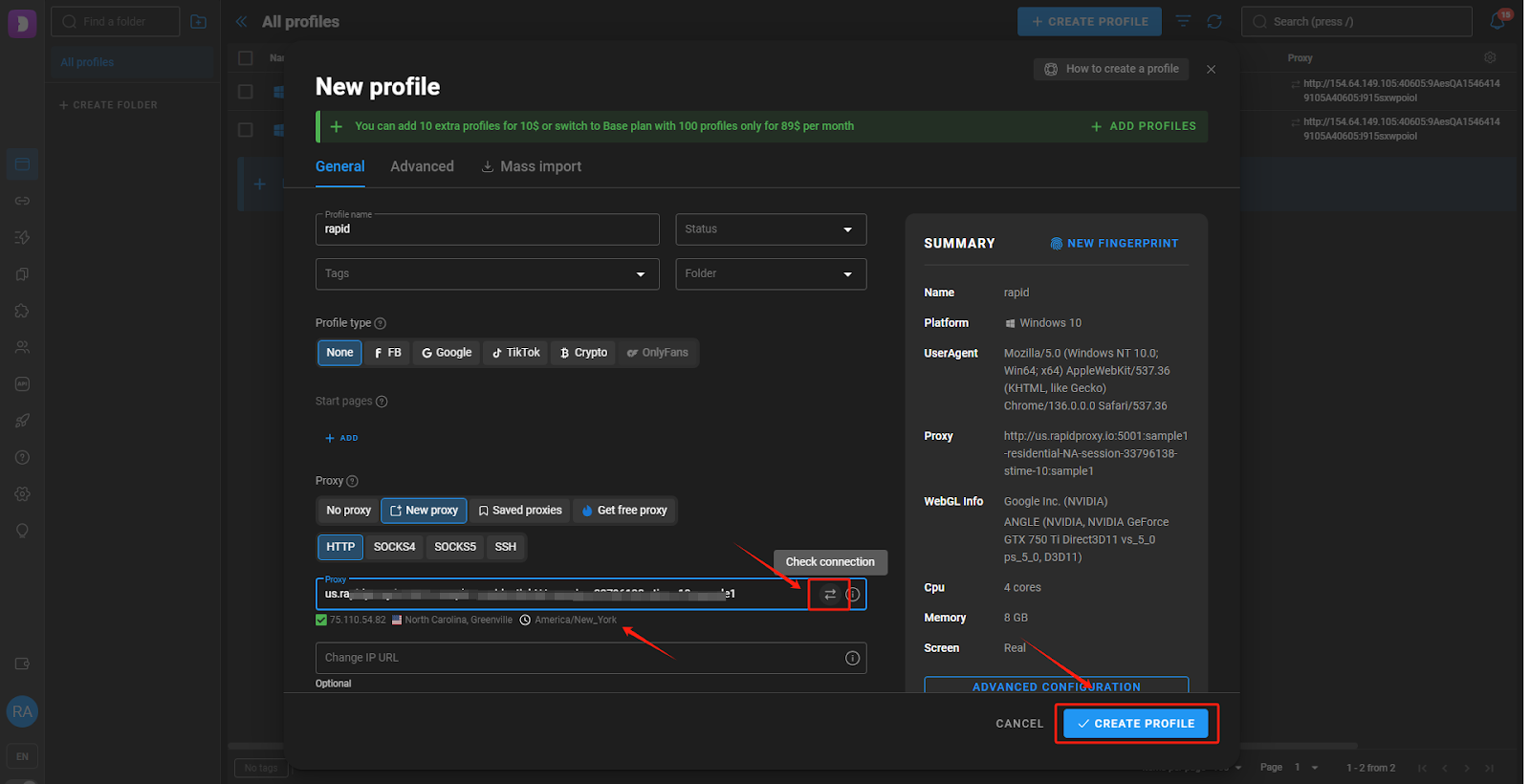
输入详情后,点击 **【Check Connection/检查连接】** 图标以验证代理连接。
如果连接成功,将会显示代理详情,确认配置已完成。然后点击 **【√ CREATE PROFILE/√ 创建配置文件 】** 保存并完成配置。
### **步骤 4:检查代理连接**
输入详情后,点击 **【Check Connection/检查连接】** 图标以验证代理连接。
如果连接成功,将会显示代理详情,确认配置已完成。然后点击 **【√ CREATE PROFILE/√ 创建配置文件 】** 保存并完成配置。
 ### **步骤 5:启动代理环境**
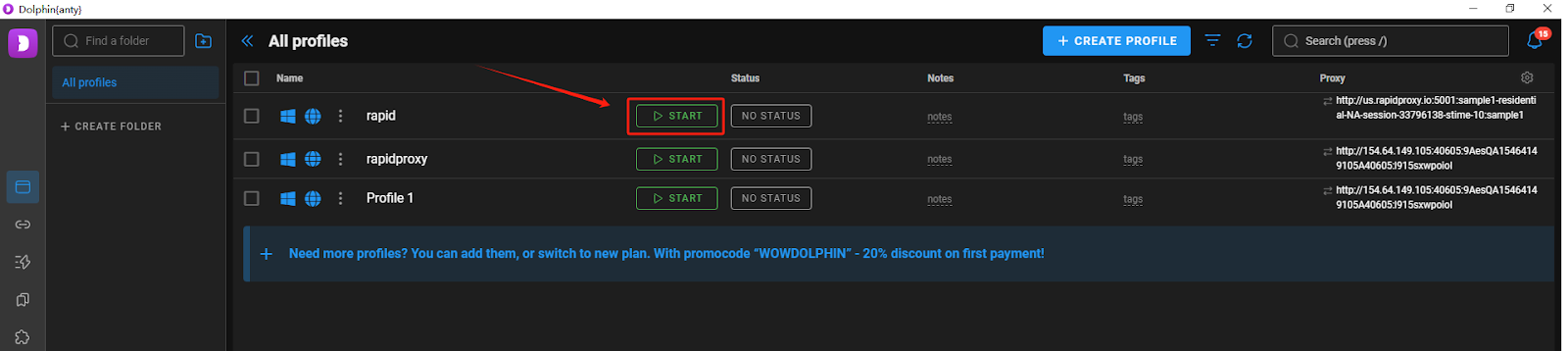
返回 **【Browser profiles/浏览器配置文件】** 页面,点击 **【START/启动】** 以激活已配置的配置文件。
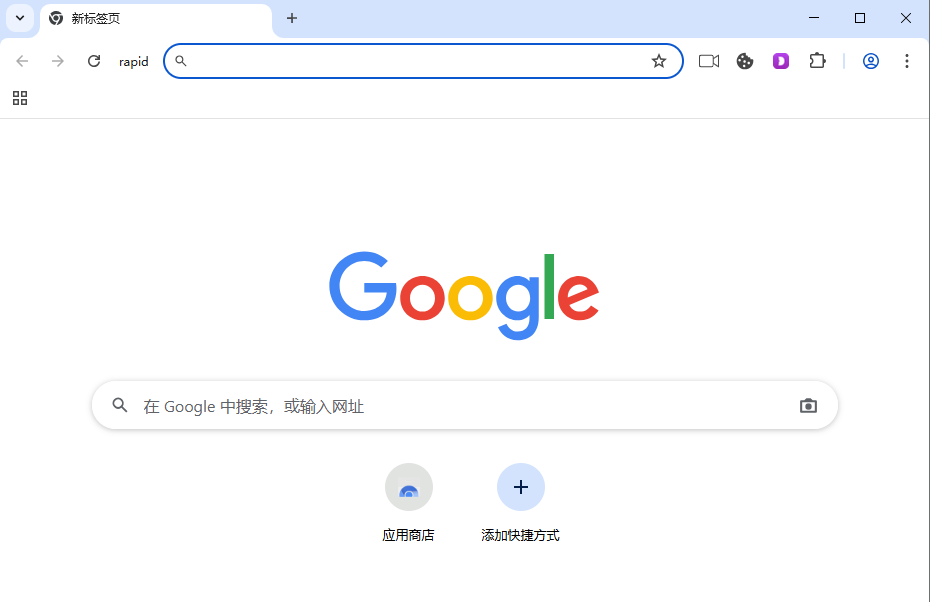
现在,您已成功将 RapidProxy 集成到 Dolphin Anty 中,可以进行安全、稳定且高效的浏览了。
### **步骤 5:启动代理环境**
返回 **【Browser profiles/浏览器配置文件】** 页面,点击 **【START/启动】** 以激活已配置的配置文件。
现在,您已成功将 RapidProxy 集成到 Dolphin Anty 中,可以进行安全、稳定且高效的浏览了。