> For the complete documentation index, see [llms.txt](https://docs.rapidproxy.io/llms.txt). Markdown versions of documentation pages are available by appending `.md` to page URLs; this page is available as [Markdown](https://docs.rapidproxy.io/proxies/integration-guide/static-residential-proxies/mulogin.md).
# MuLogin
### **Step 1: Obtain Proxy Information**
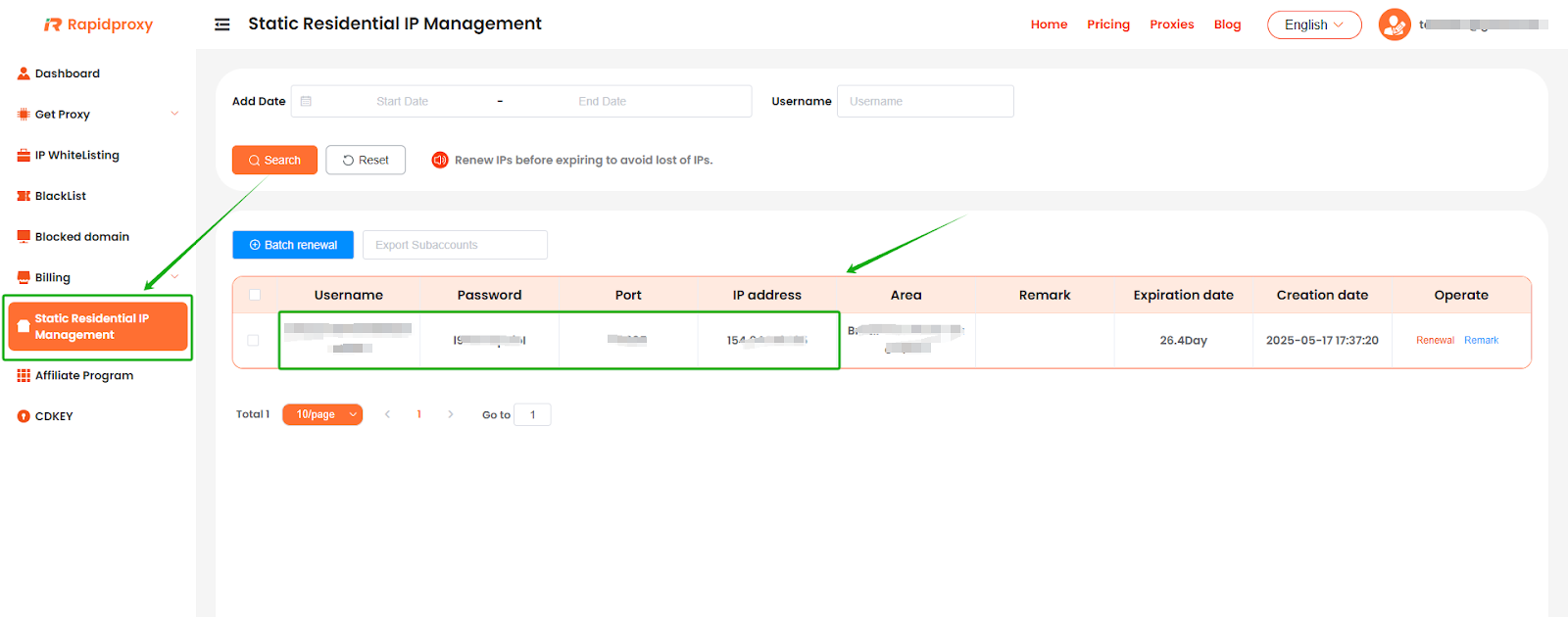
Log in to the RapidProxy dashboard, go to **【Static Residential lP Management】**, and obtain the proxy information:
**IP Address : Port : Username : Password**
### **Step 2: Configure the Proxy in** [**Mulogin**](https://www.mulogin.com/?ref=rapidproxy)
#### **1. Create a New Proxy Configuration**
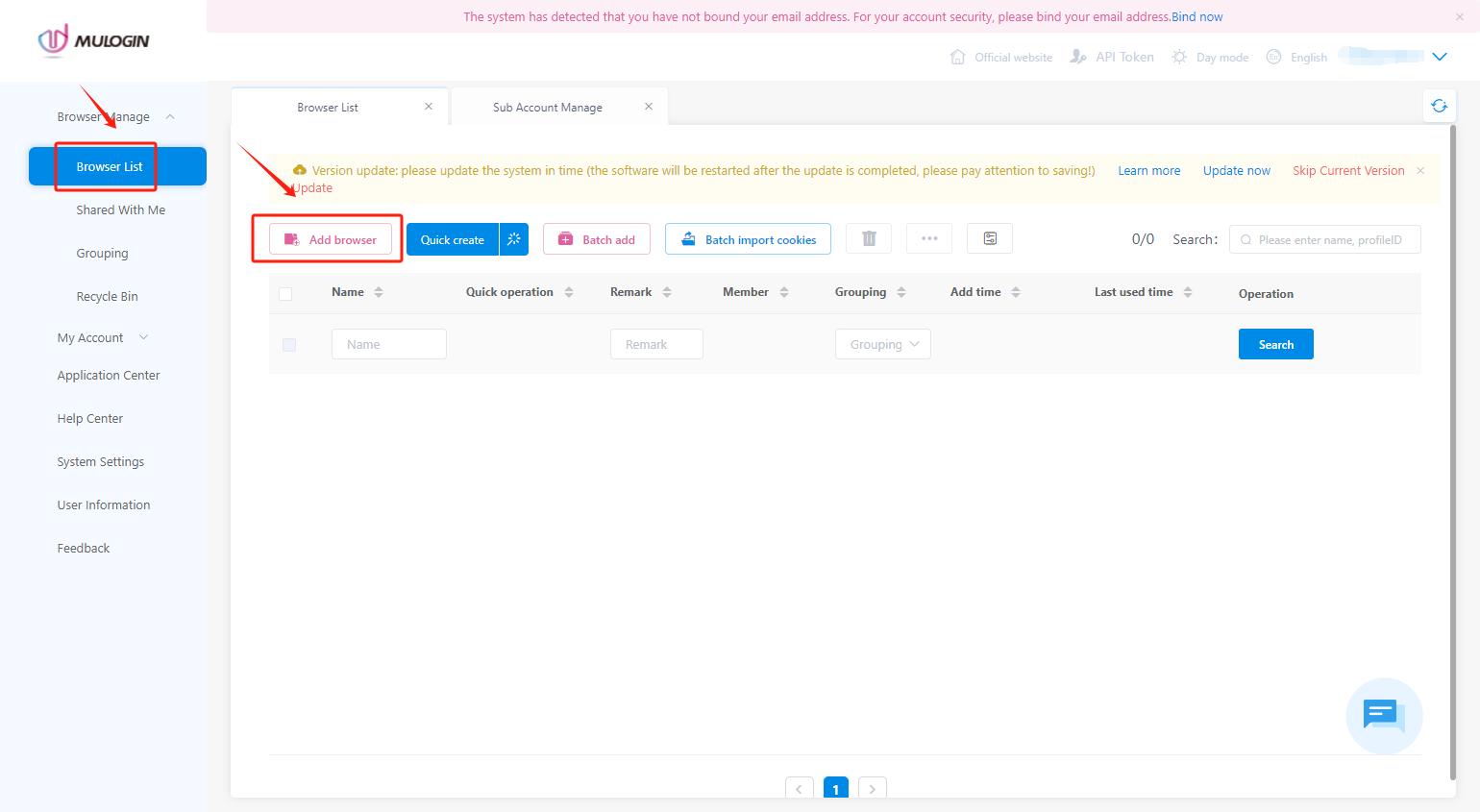
Navigate to 【Browser Manager】 — 【Browser List】 —【Add Browser】 to create a new profile.
#### **2. Configure Proxy Settings**
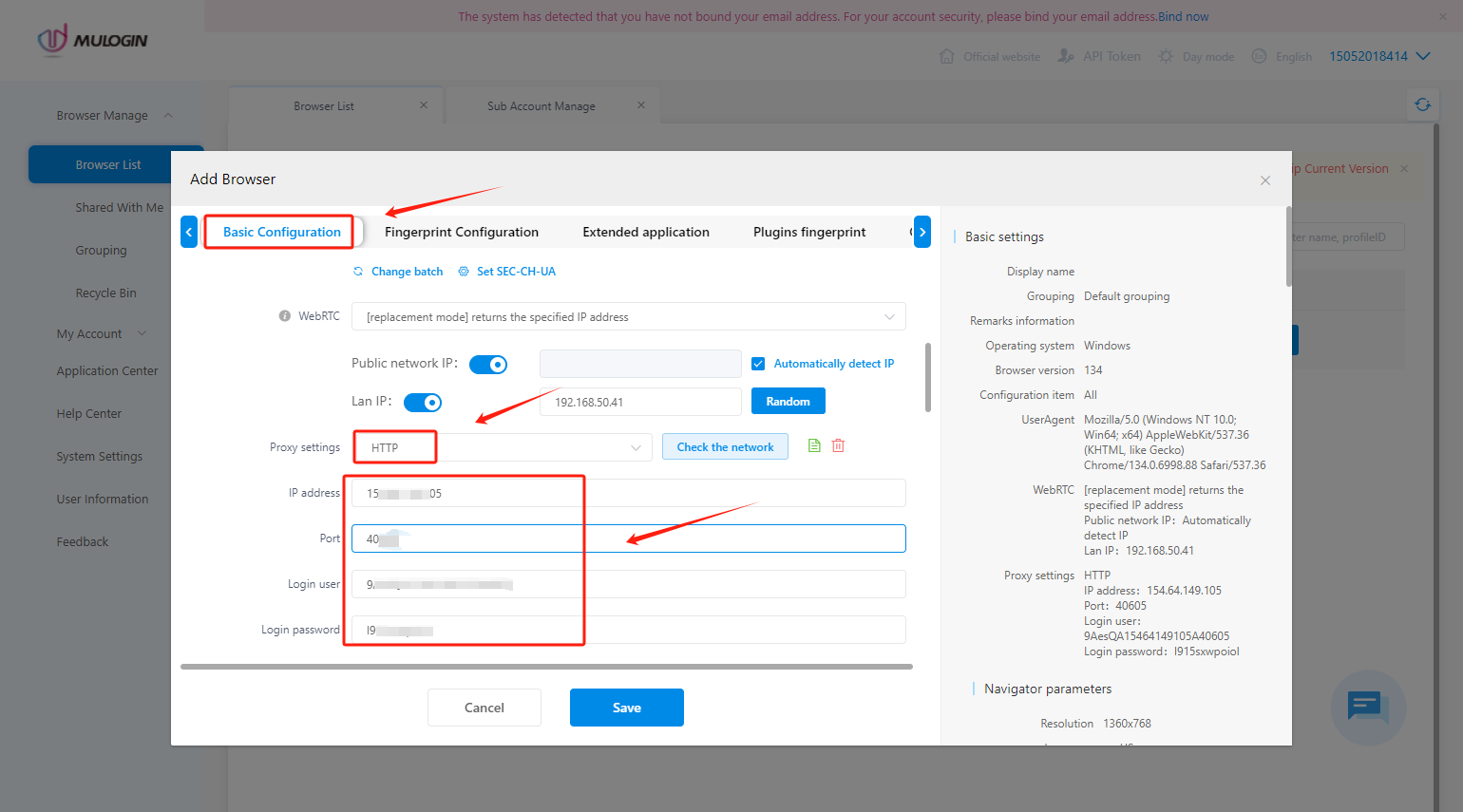
* In the 【Basic Configuration】 section, locate 【Proxy settings】 and select 【HTTP】.
* Paste the proxy details provided by Rapidproxy into the corresponding fields.
*Note: This example uses 【HTTP】; Rapidproxy supports 【HTTP】, 【HTTPS】, and 【SOCKS5】 protocols.*
#### **3. Verify Proxy Connection**
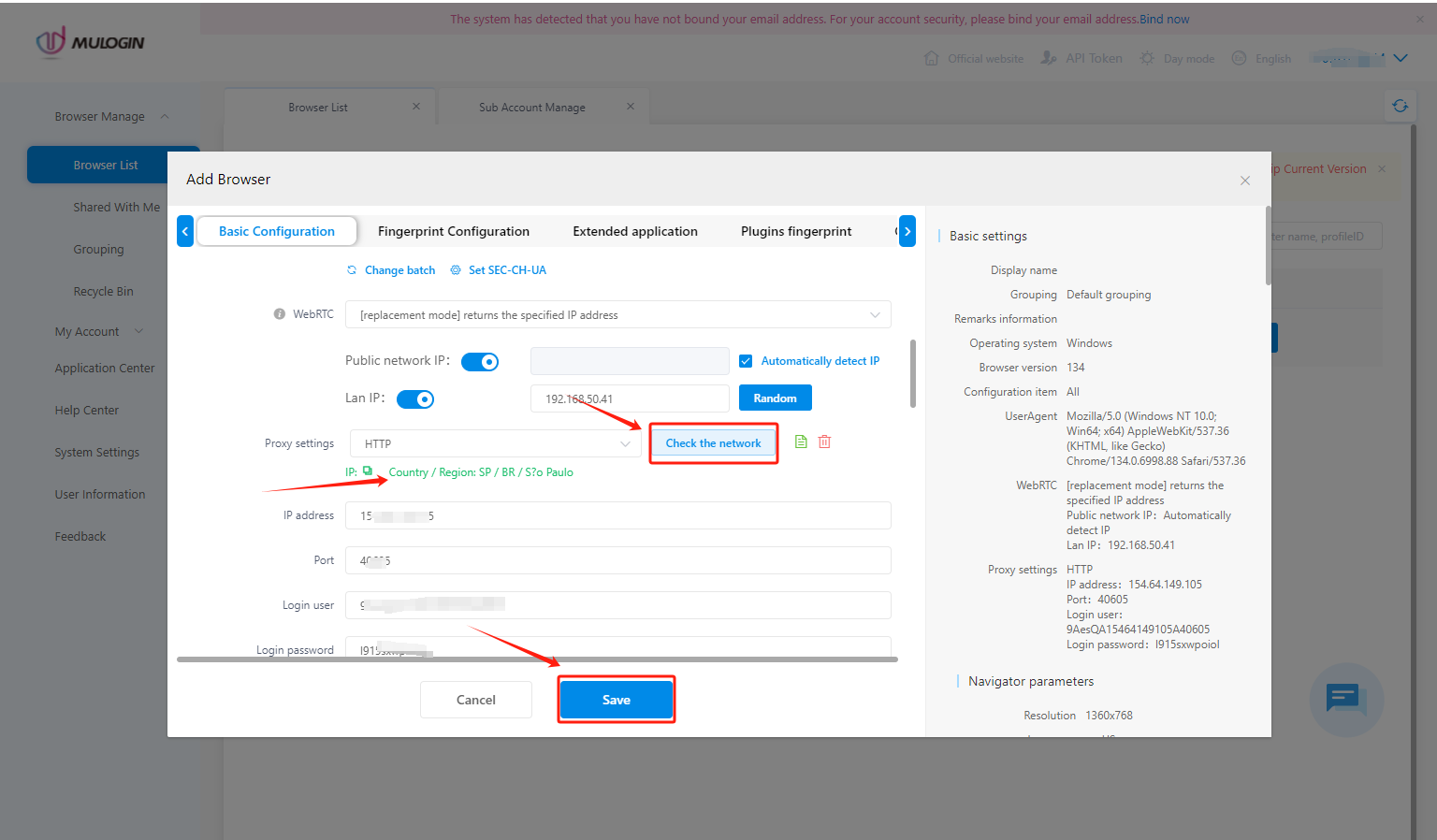
* Click 【Check the network】 to test the proxy connection.
* If successful, proxy details will be displayed.
* Click 【Save】 to save the configuration.