> For the complete documentation index, see [llms.txt](https://docs.rapidproxy.io/llms.txt). Markdown versions of documentation pages are available by appending `.md` to page URLs; this page is available as [Markdown](https://docs.rapidproxy.io/proxies/integration-guide/static-residential-proxies/gologin.md).
# Gologin
### **Step 1: Obtain Proxy Information**
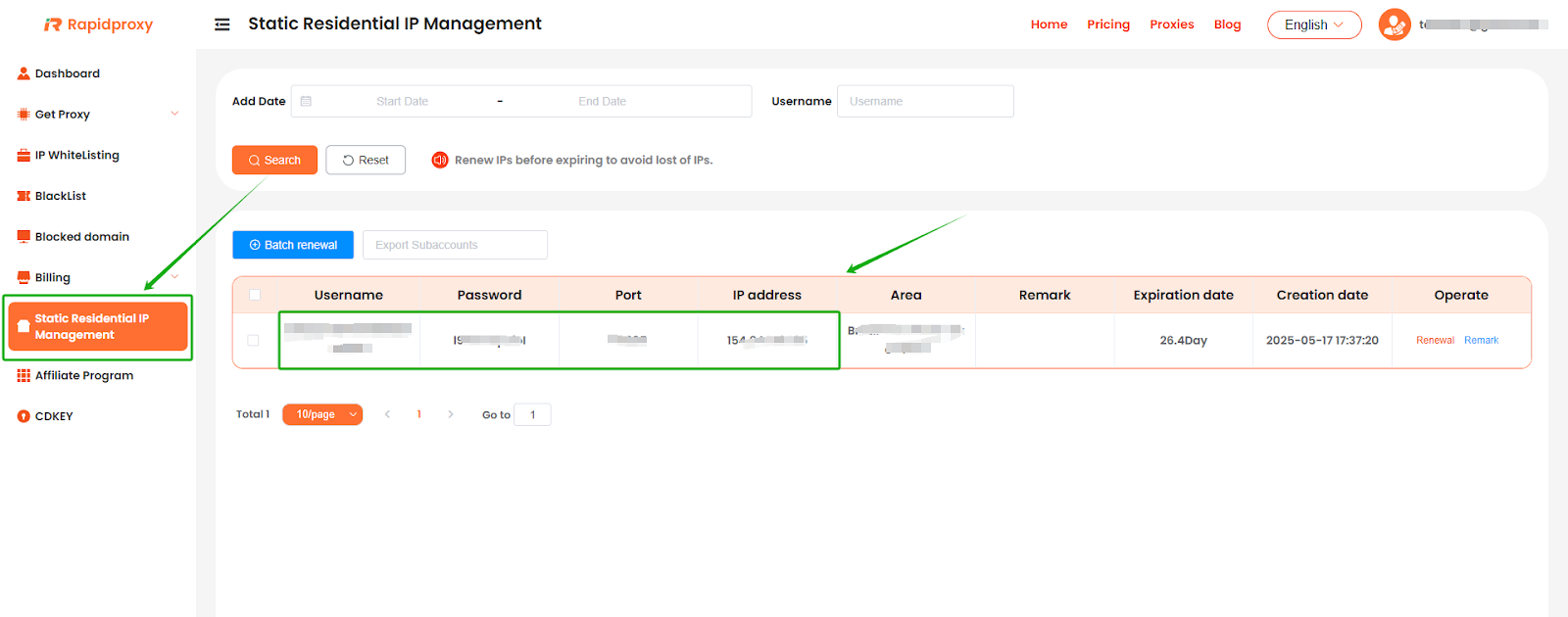
Log in to the RapidProxy dashboard, go to **【Static Residential lP Management】**, and obtain the proxy information:
**IP Address : Port : Username : Password**
### **Step 2: Configure the Proxy in Gologin**
#### **1. Add Proxy**
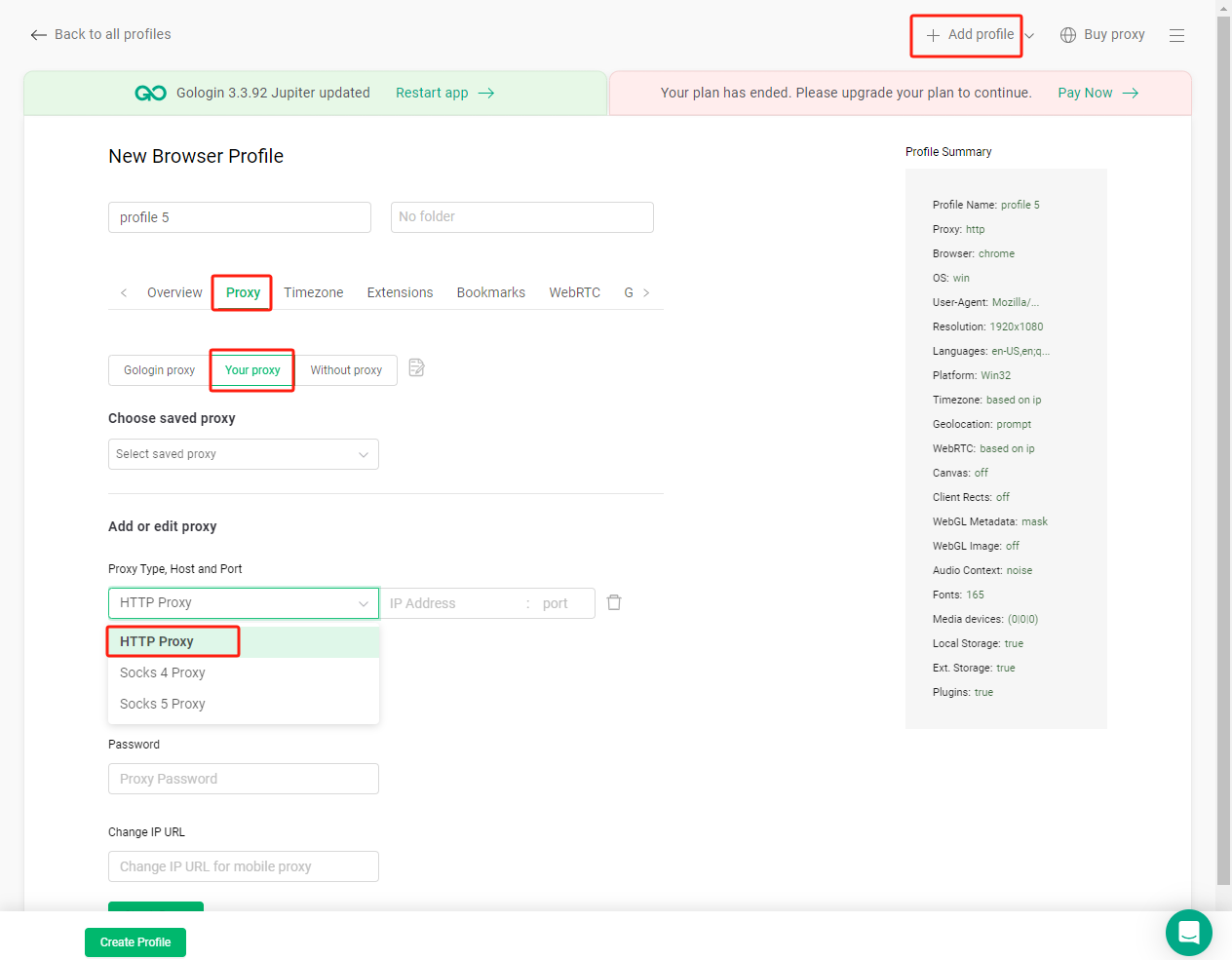
Click **【+ Add profile】**, then select **【Proxy】--【Your proxy】**.\
Find **【Proxy type】** and select **HTTP Proxy**.
**Note**: This example uses HTTP. Rapidproxy supports HTTP, HTTPS, and SOCKS5 protocol types.
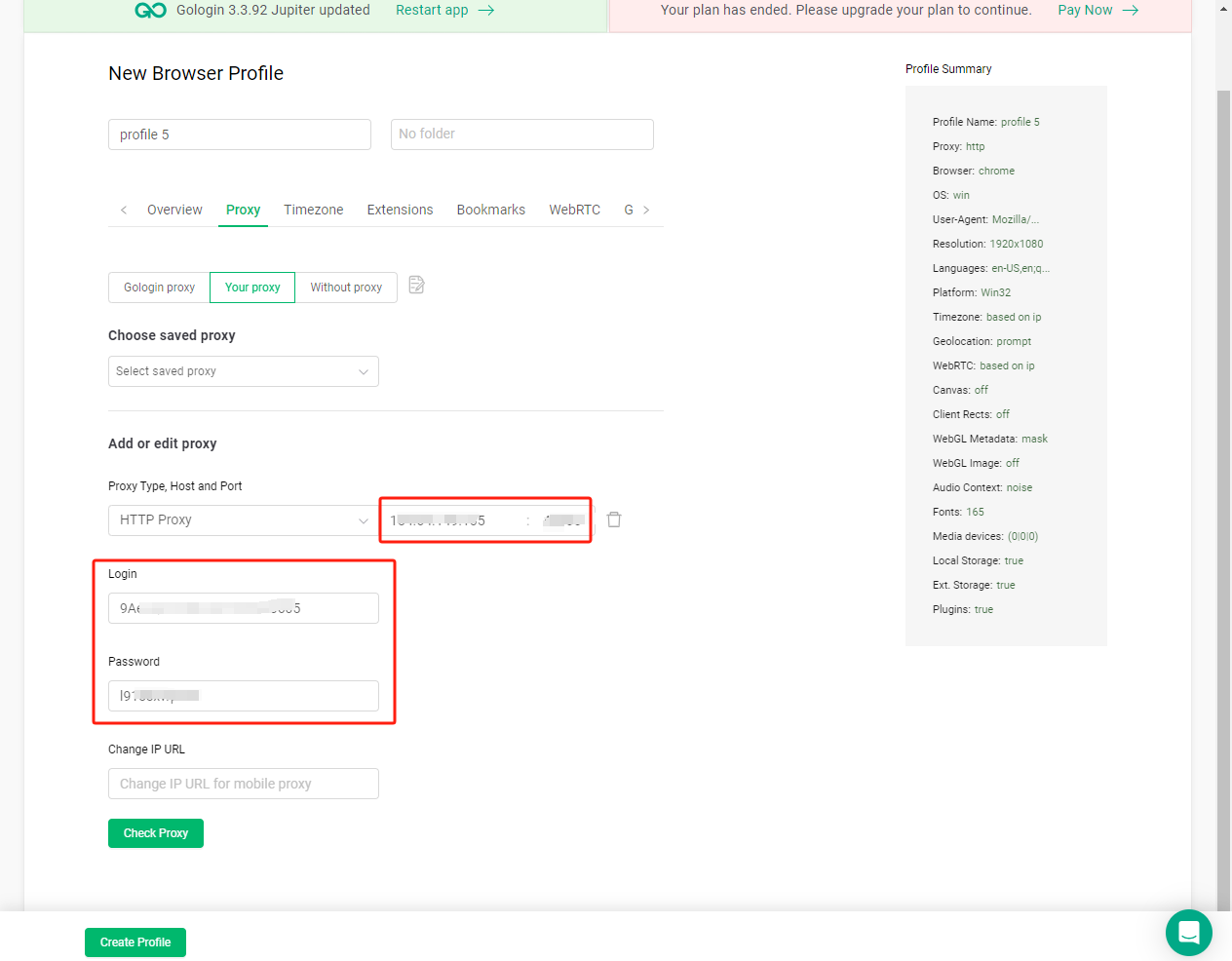
#### **2. Paste Proxy Information**
Paste the proxy information generated from Rapidproxy into the corresponding fields in Gologin.
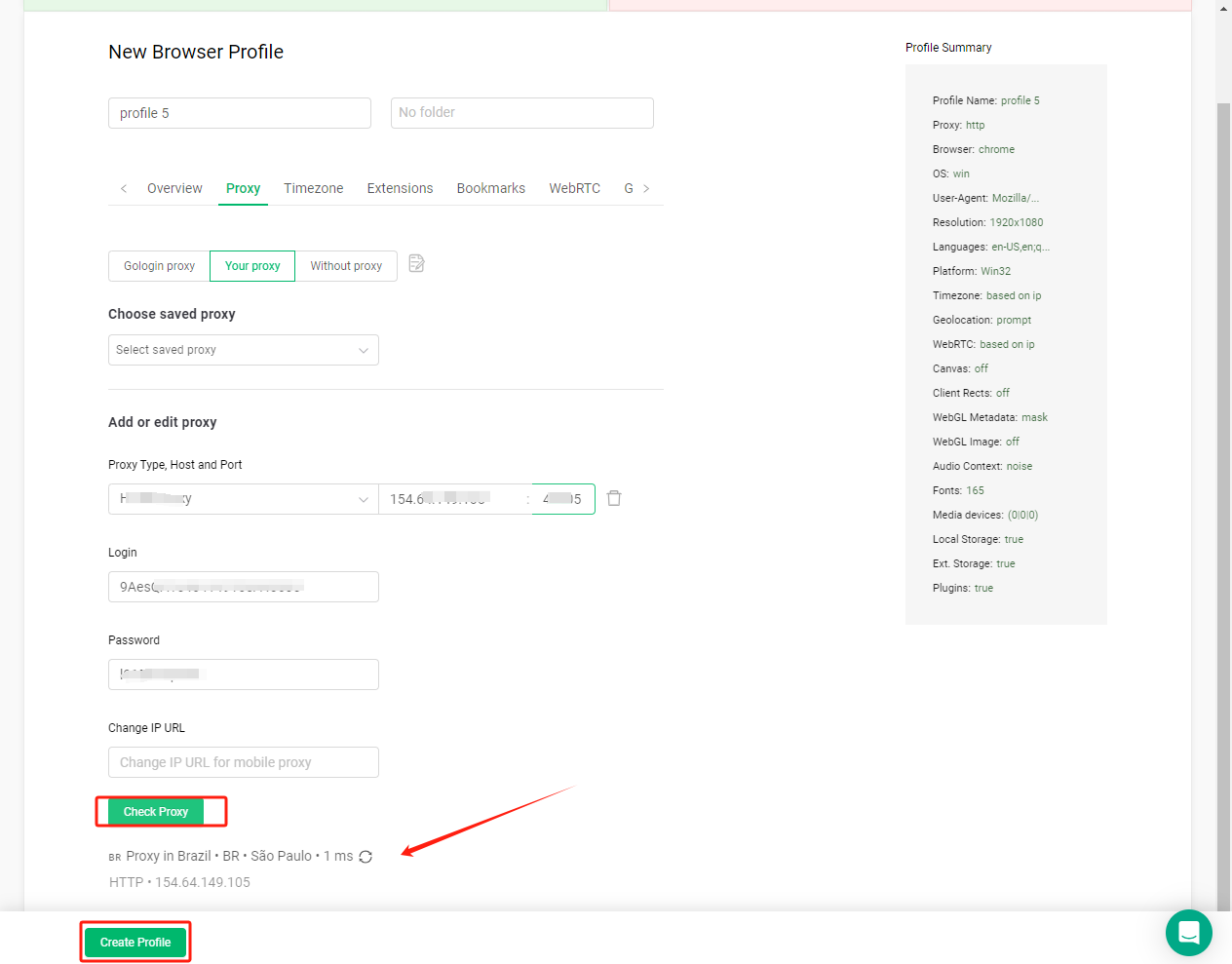
#### **3. Check Proxy Connection**
After configuration, click **【Check Proxy】** to verify if the proxy connection is working correctly.\
If everything is normal, you will see the proxy details! At this point, you have successfully set up the proxy.Click 【Save】 to save the proxy configuration.
#### **4. Start Using the Proxy**
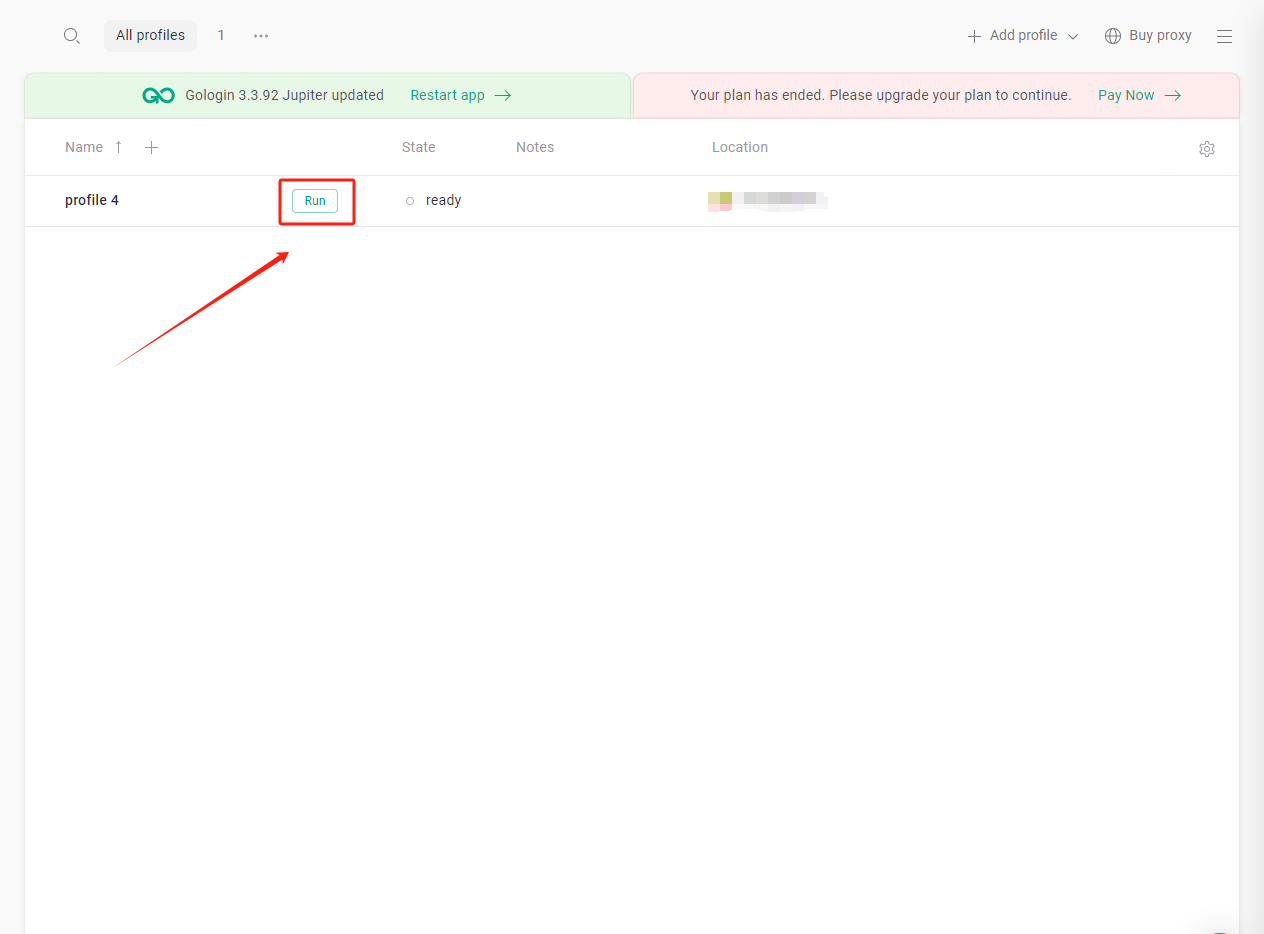
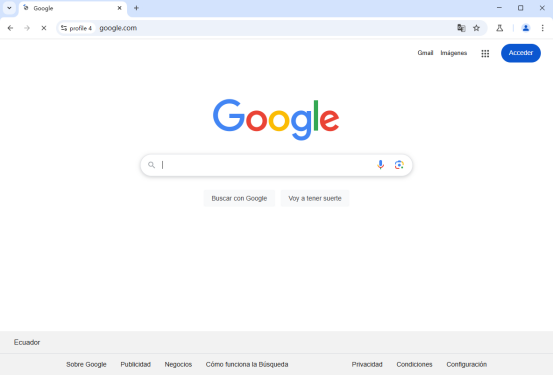
Click **【Run】** to begin using the configured proxy. You can now safely conduct your online activities.