> For the complete documentation index, see [llms.txt](https://docs.rapidproxy.io/llms.txt). Markdown versions of documentation pages are available by appending `.md` to page URLs; this page is available as [Markdown](https://docs.rapidproxy.io/proxies/integration-guide/dynamic-residential-proxies/xlogin.md).
# XLogin
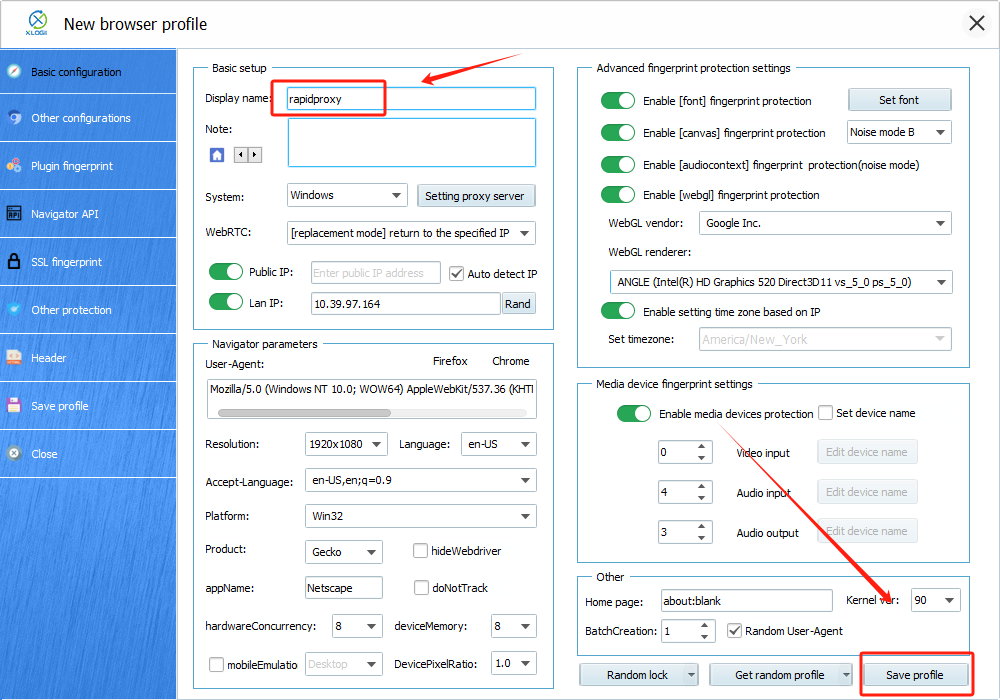
### **Step 1: Create a New Profile in XLogin**
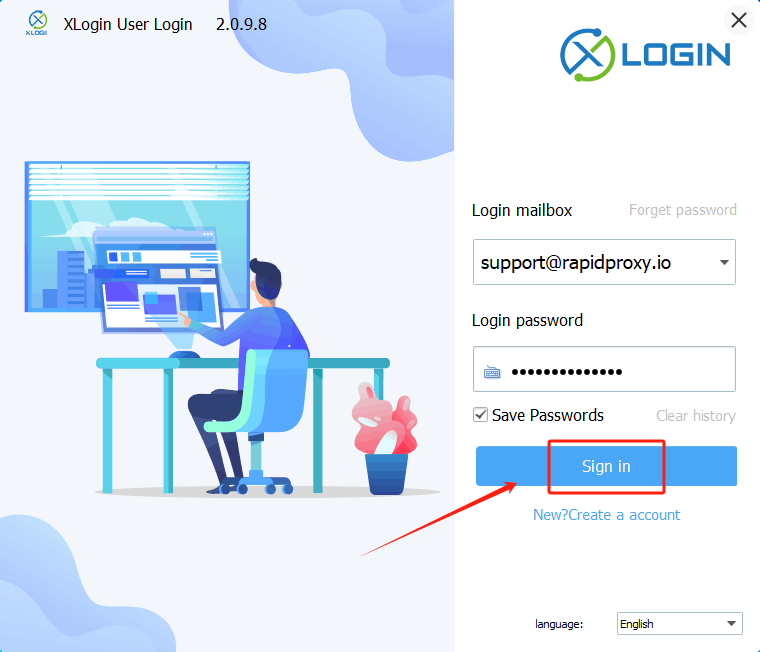
1. Open the [**XLogin application**](https://xlogin.us/?sub=rapidproxy), then click **【**[**Sign in**](https://xlogin.us/?sub=rapidproxy)**】Support Free Trial**
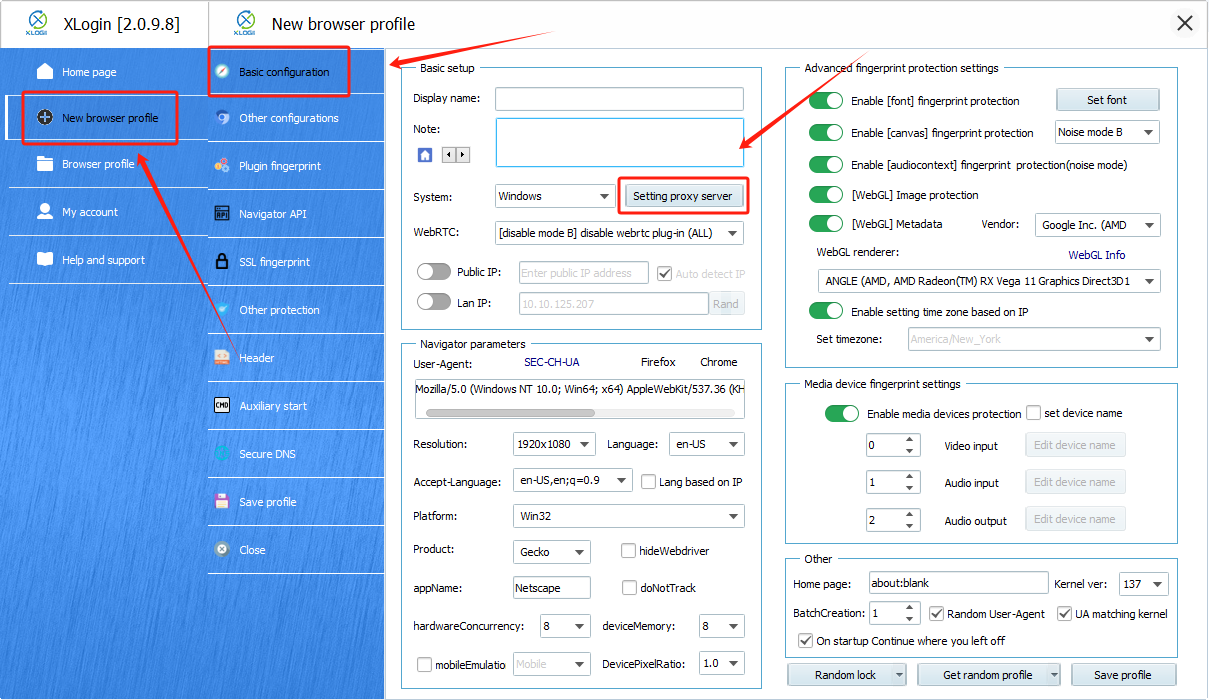
2. Click **【New browser profile】** to create a new environment
3. Navigate to the **【Basic Configuration】** tab
4. Find and click **【Setting proxy server】** to start proxy configuration
### **Step 2: Add Your RapidProxy Details**
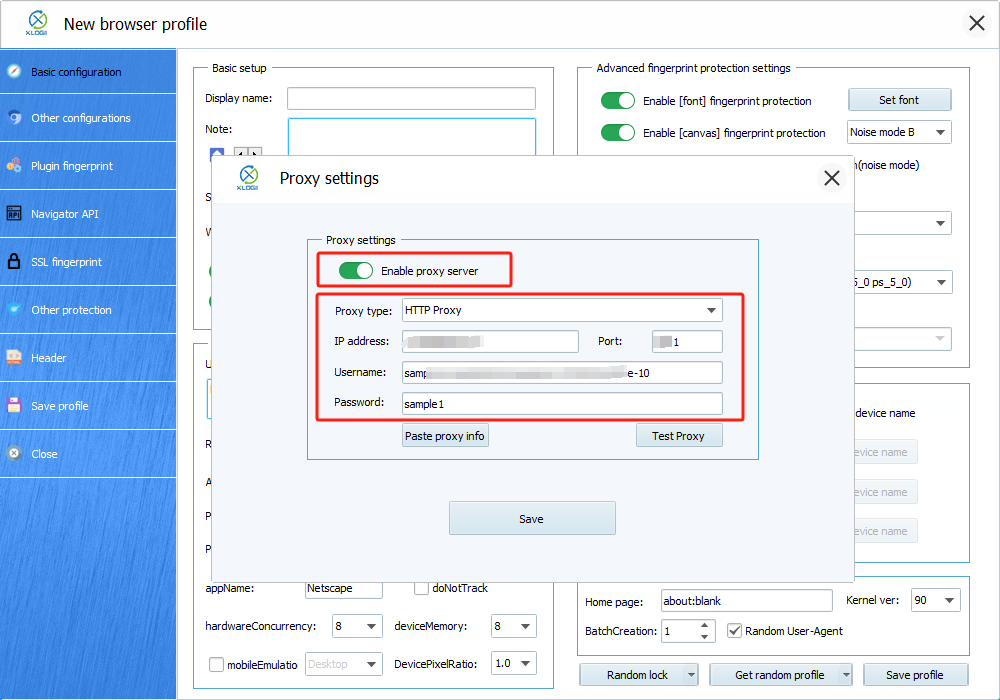
1. Toggle on **【Enable Proxy Server】**
2. Choose the appropriate proxy type, such as **HTTP**
3. Paste the **IP:Port:Username:Password** from your RapidProxy dashboard
Tip: RapidProxy supports **HTTP(S)/SOCKS5** protocols. Select the one that matches your needs.
### **Step 3: Test the Connection**
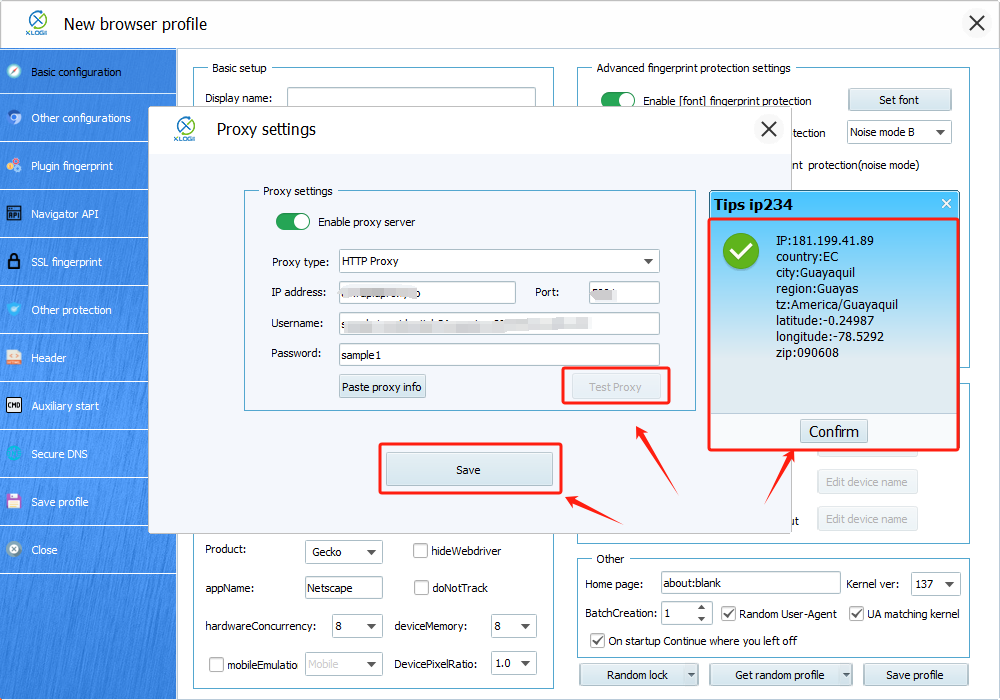
1. Click**【Test Proxy】**to check if the proxy is working
2. If the test is successful, click**【Confirm】—【Save】**to complete the configuration
### **Step 4: Save and Launch**
1. Enter a name in the **【Display name】** field
2. Click **【Save Profile】** to store your settings
You’re now ready to use XLogin with RapidProxy for stable, anonymous, and secure browsing.