> For the complete documentation index, see [llms.txt](https://docs.rapidproxy.io/llms.txt). Markdown versions of documentation pages are available by appending `.md` to page URLs; this page is available as [Markdown](https://docs.rapidproxy.io/proxies/integration-guide/dynamic-residential-proxies/pionlogin.md).
# PionLogin
### Step 1: Log In
Open PionLogin and click【[Login](https://pionlogin.net/)】to access your account.
### Step 2: Create a New Proxy Profile
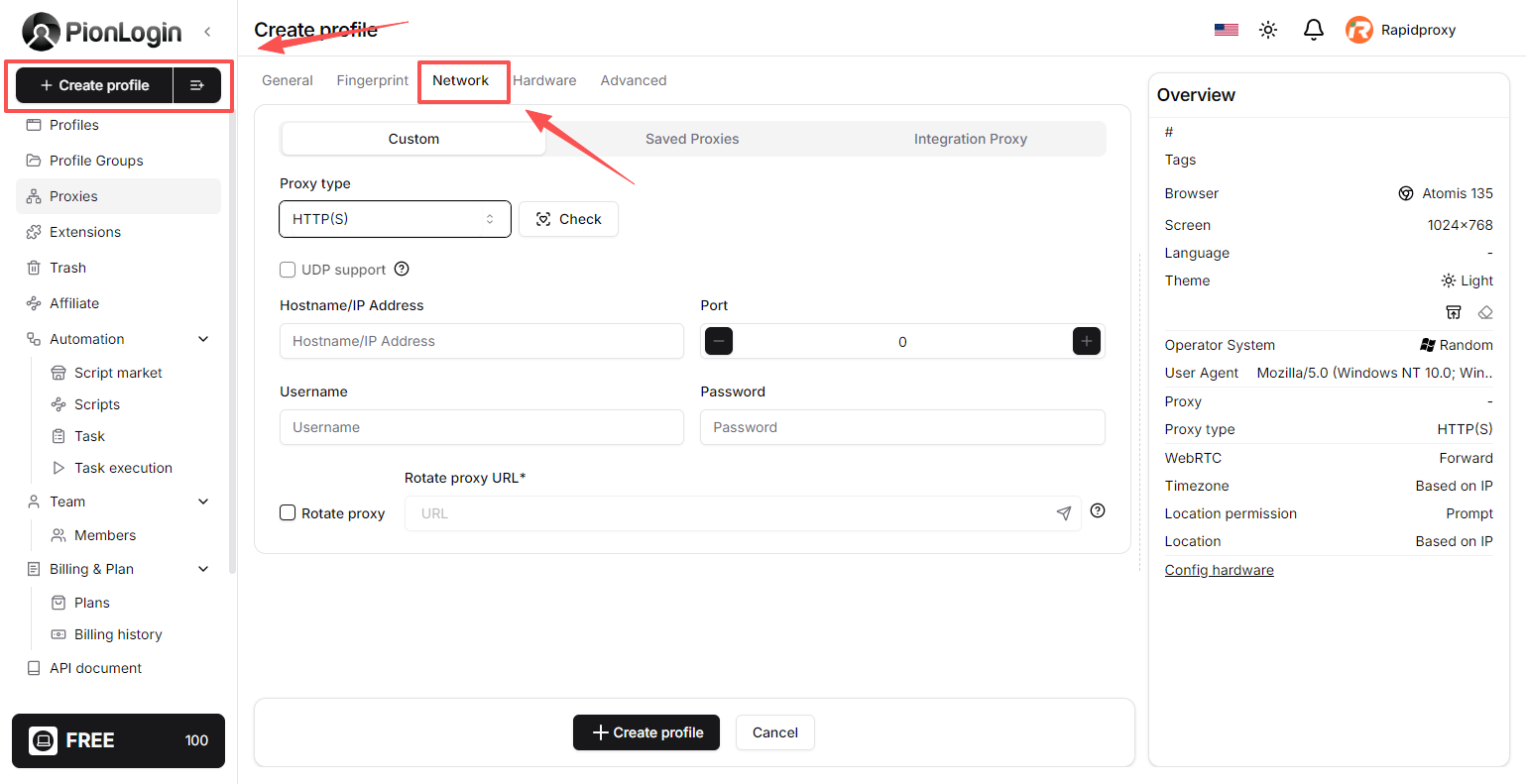
Click**【Create profile】**in the left menu.
Go to the**【Network】**section.
Select**【HTTPS】**as the Proxy Type.
Note: RapidProxy supports HTTP(S) and SOCKS5.
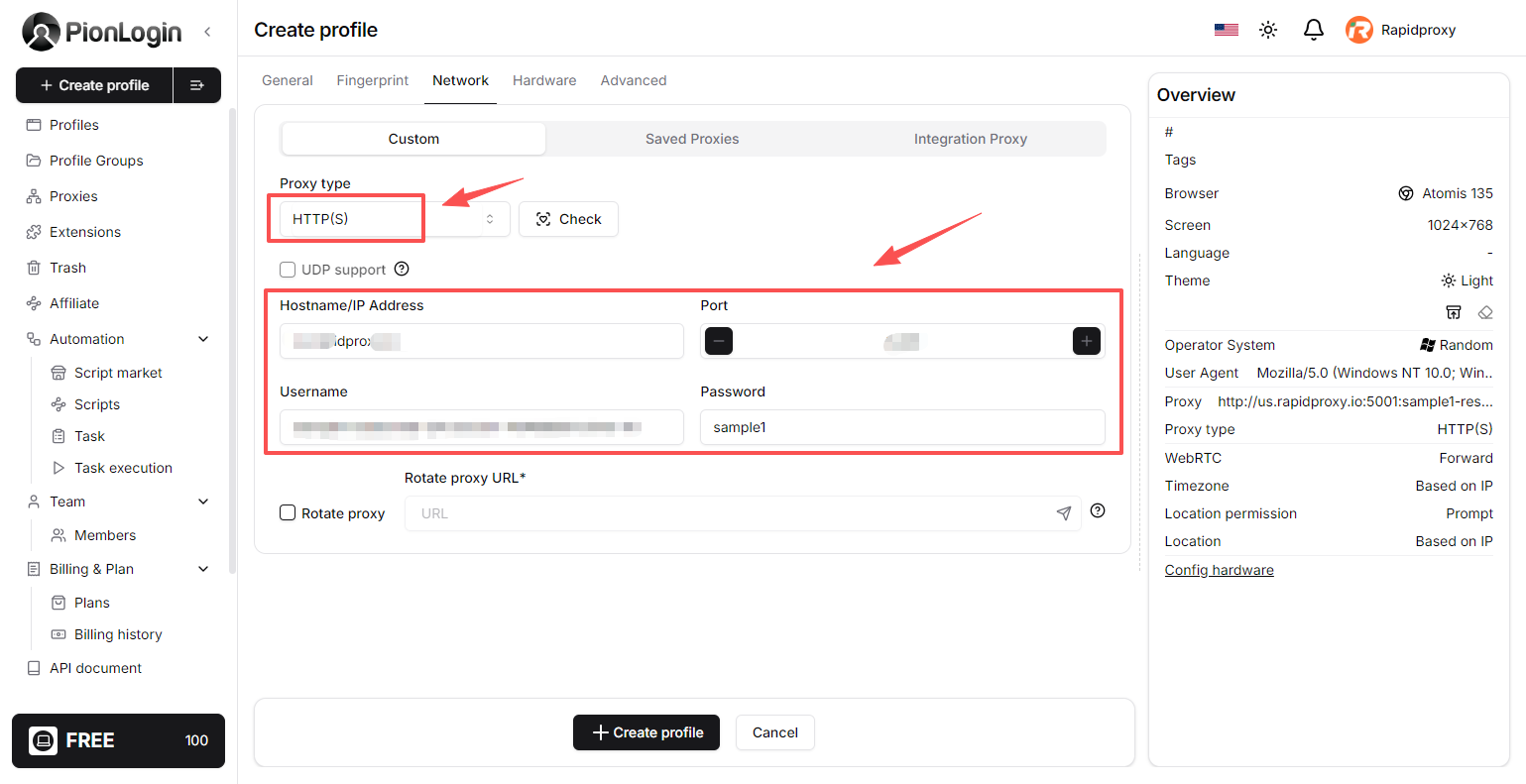
### Step 3: Enter Proxy Details
Paste your RapidProxy credentials (host, port, username, password) into the corresponding fields to
ensure a stable and secure connection.
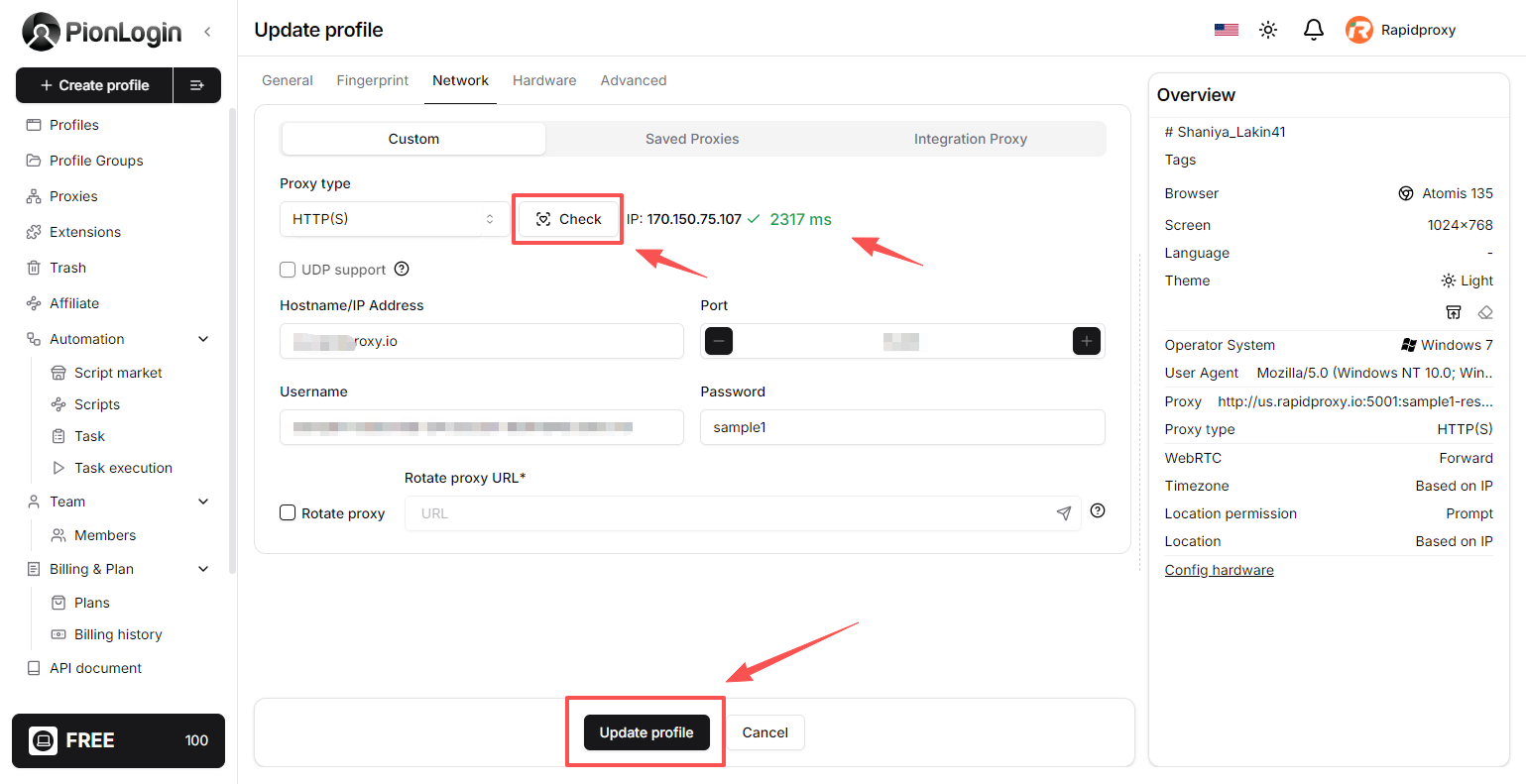
### Step 4: Test the Connection
Click**【Check】**to verify the proxy. Once successful, click**【Create profile】**to save the configuration.
### Step 5: Start Browsing
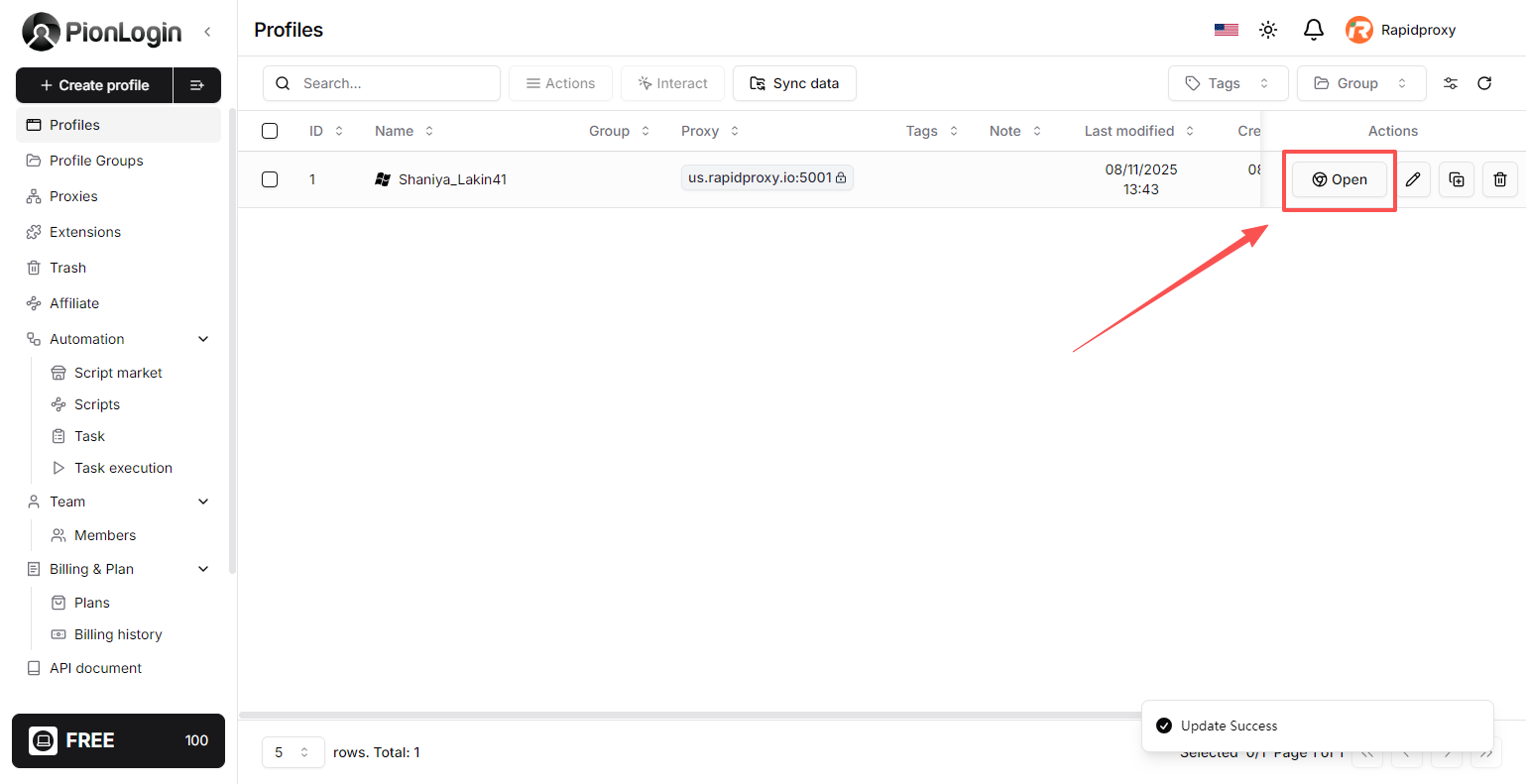
Click **【Open】**to launch a separate browser with the proxy.
You can now browse safely and securely using RapidProxy in PionLogin.