> For the complete documentation index, see [llms.txt](https://docs.rapidproxy.io/llms.txt). Markdown versions of documentation pages are available by appending `.md` to page URLs; this page is available as [Markdown](https://docs.rapidproxy.io/proxies/integration-guide/dynamic-residential-proxies/maslogin.md).
# MasLogin
### Step 1: Download and Install [MasLogin](https://maslogin.com/partners/Rapidproxy)
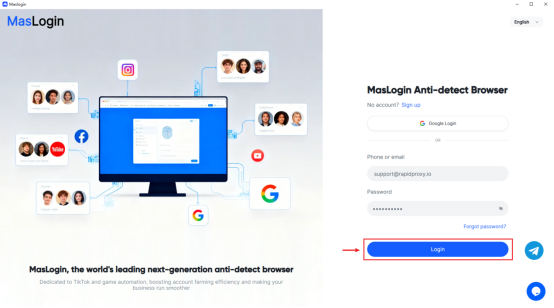
Open the MasLogin and click [Login](https://maslogin.com/partners/Rapidproxy) to access your account.(Just a simulation)
### Step 2: Create a New Proxy Profile
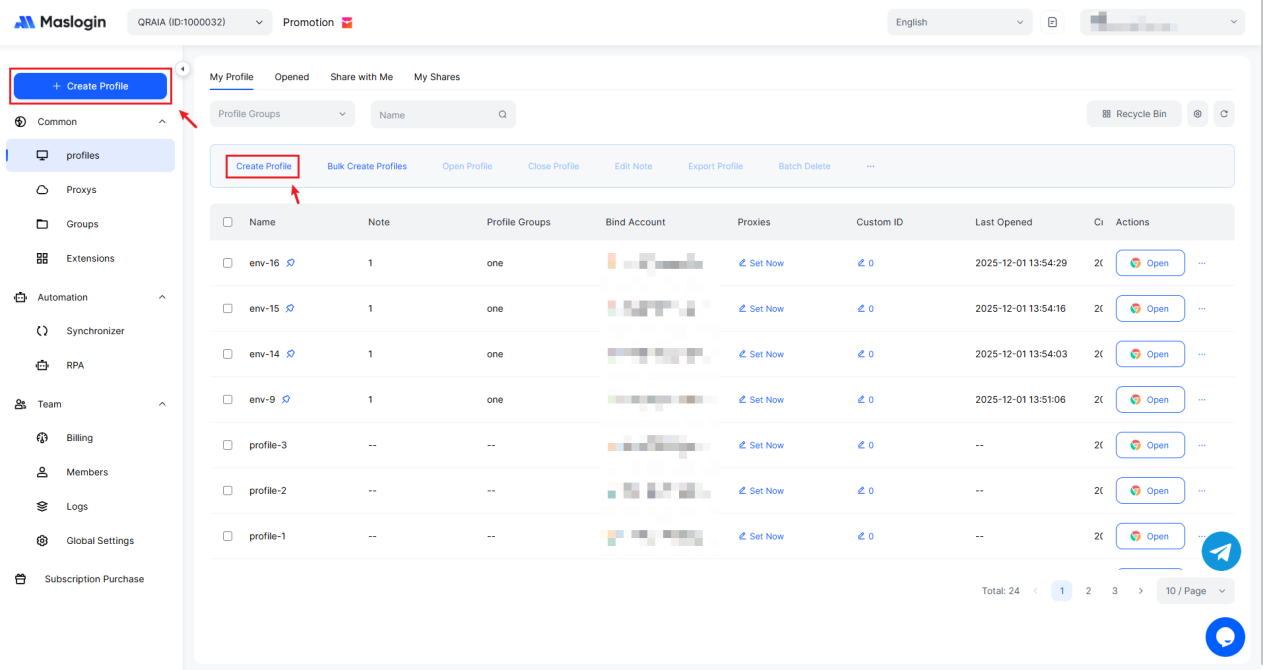
Click on "Create Profile" at the top of the left column or under "Profiles" to begin creating a new configuration.
### Step 3: Configure Proxy Settings
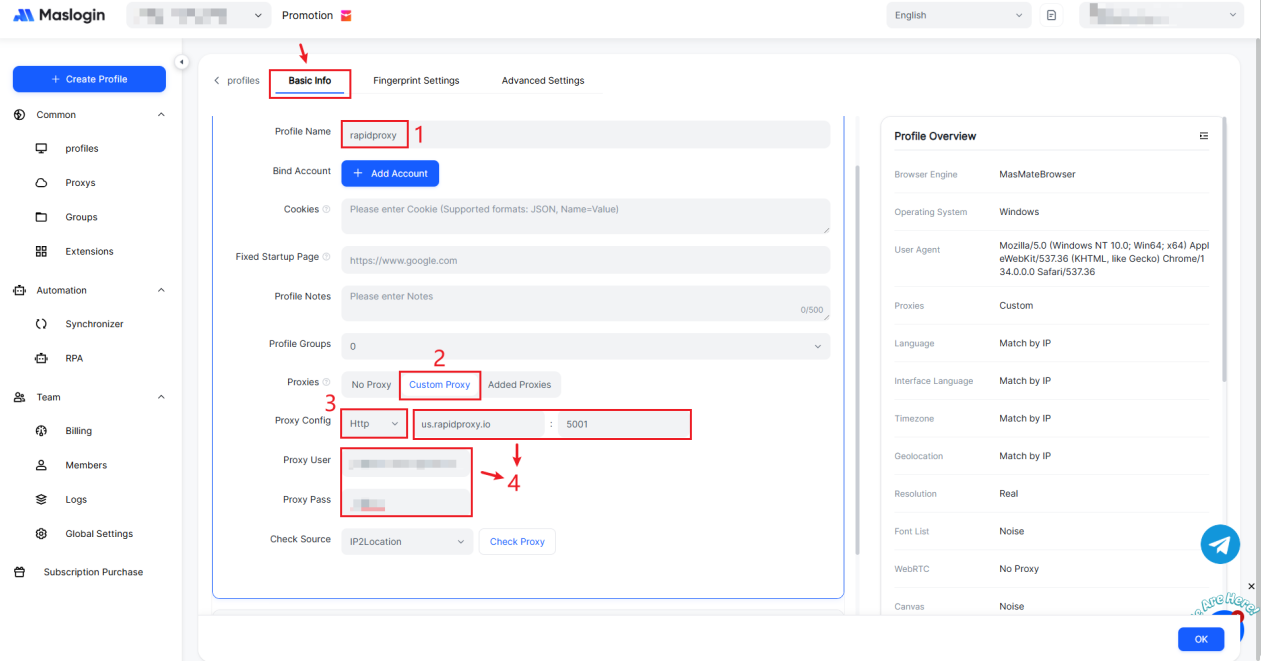
Creating an environment requires at least the following basic information:
1\. Enter a name for your profile, such as “rapidproxy”.
2\. In the Proxy Config section, choose【Custom Proxy】.
3\. Set Proxy Type to【HTTP】.
4\. Paste the proxy information provided by RapidProxy, including: IP Address:Port:Username:Password
Note: This example uses HTTP, but [RapidProxy](https://www.rapidproxy.io/) supports HTTP(S)/SOCKS5 protocols.
[How to Get Residential Proxies by APl?](/proxies/dynamic-residential-proxy/get-proxy/api/get-proxy-via-api-method.md)
[How to Get Residential Proxies by User & Pass Auth?](/proxies/dynamic-residential-proxy/get-proxy/user-and-pass-auth.md)
### Step 4: Test the Proxy Connection
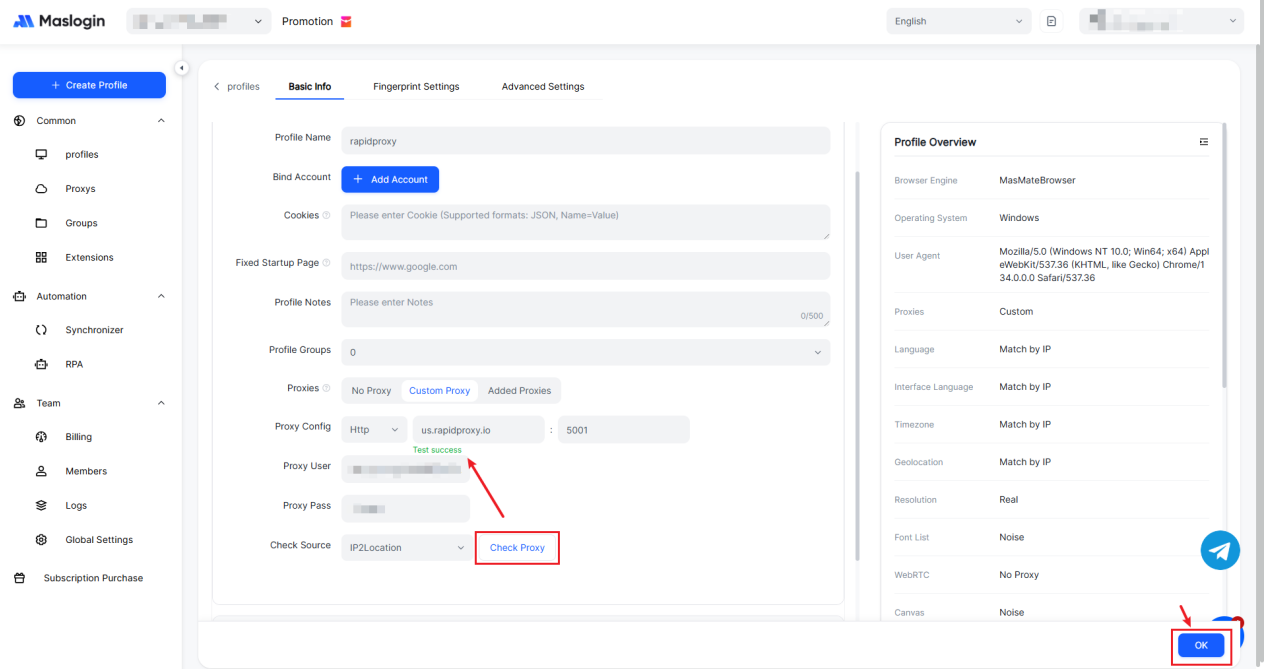
After entering the settings, click Check Proxy to verify the connection.
If successful, you'll see "Test success" .
Click OK to save all your configuration.
### Step 5: Start Using the Proxy
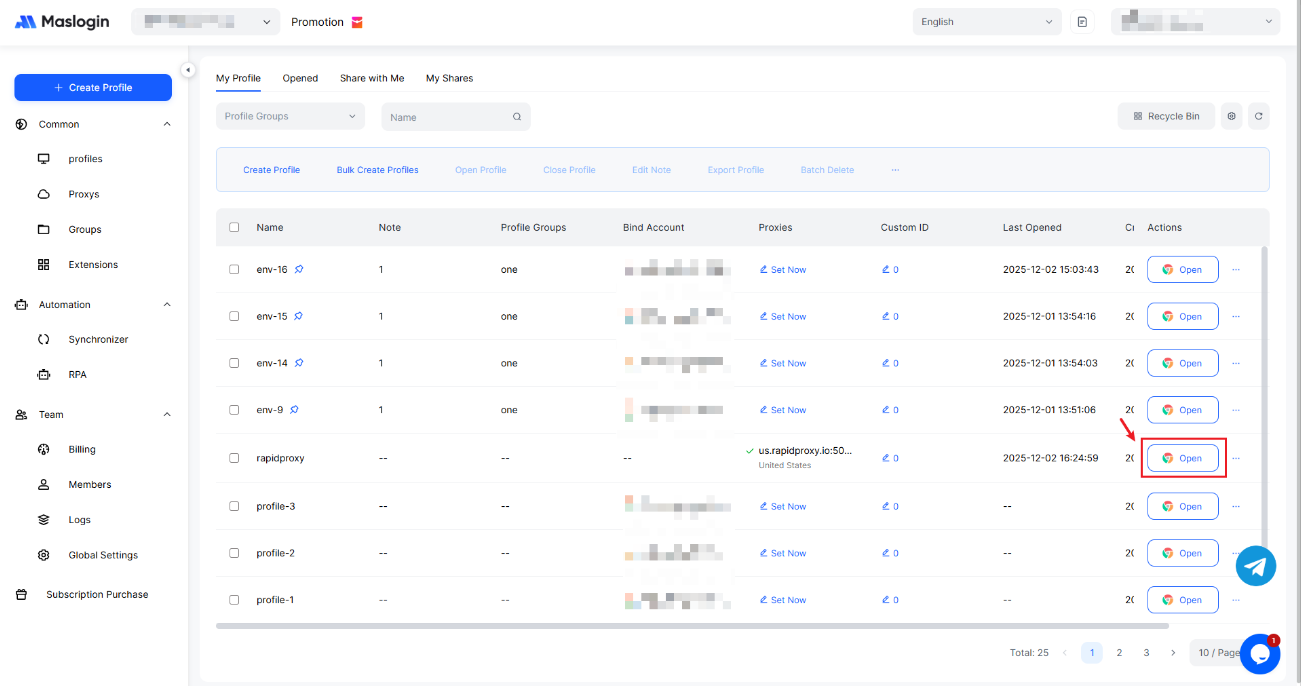
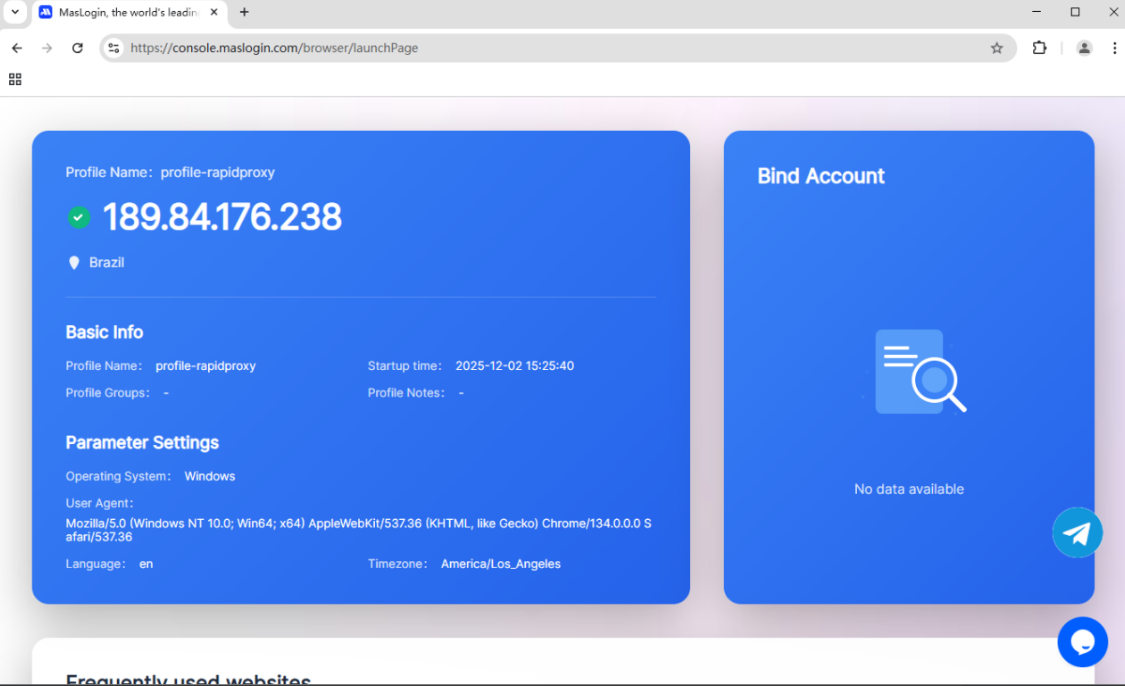
Click Open to launch the configured environment.
You’re now ready to browse safely and securely with RapidProxy in MasLogin.