> For the complete documentation index, see [llms.txt](https://docs.rapidproxy.io/llms.txt). Markdown versions of documentation pages are available by appending `.md` to page URLs; this page is available as [Markdown](https://docs.rapidproxy.io/proxies/integration-guide/dynamic-residential-proxies/genlogin.md).
# Genlogin
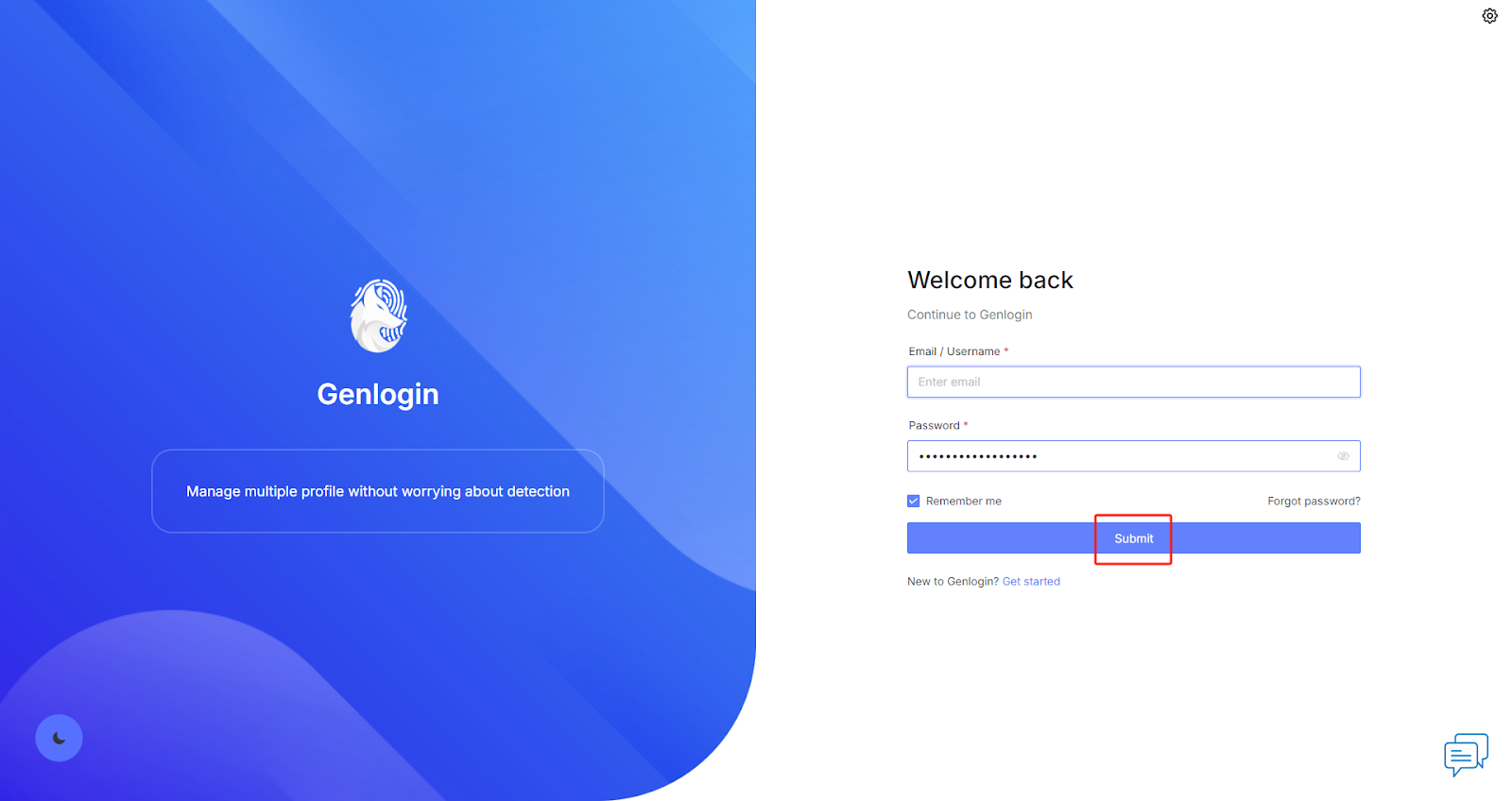
### **Step 1: Log in to your account**
Open the [**Genlogin**](https://genlogin.com/) browser and click **【Submit】** to log in to your account.
**Official Link** : [**https://genlogin.com**](https://genlogin.com/)
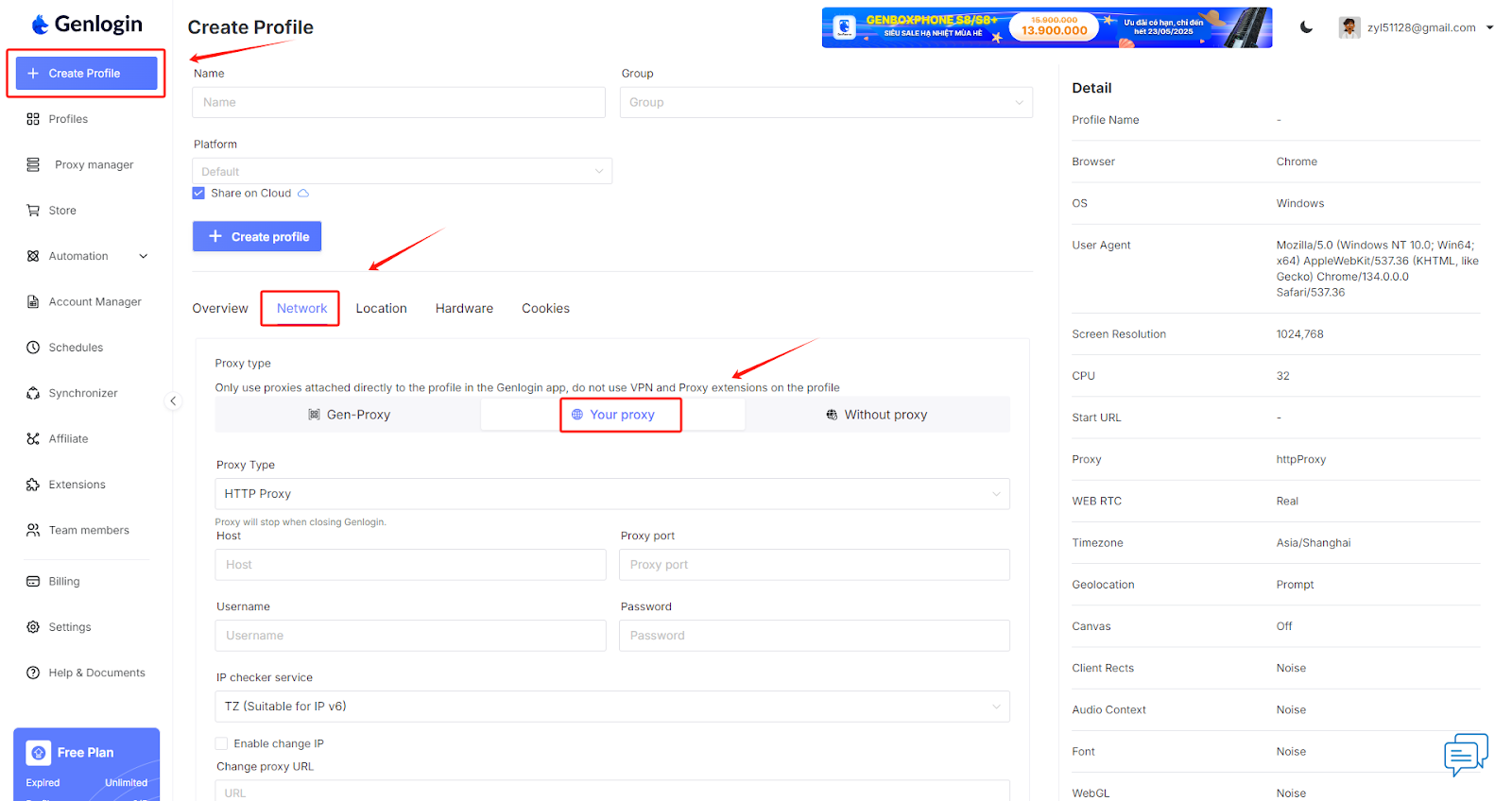
### **Step 2: Create a new proxy configuration**
Click**【Create Profile】** to enter the configuration interface. Then go to **【Network】 — 【Your Proxy】** to add your proxy details.
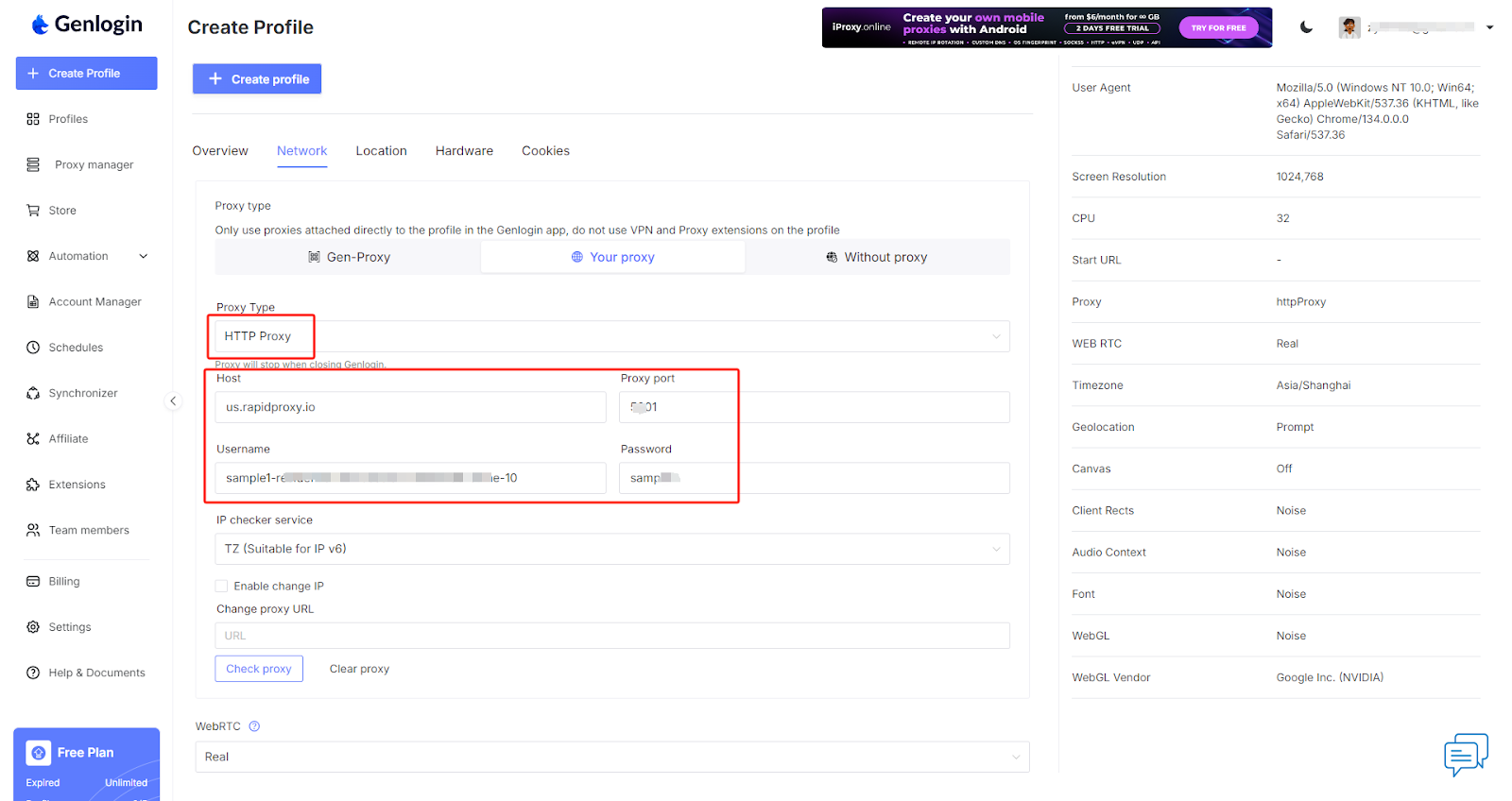
### **Step 3: Configure proxy information**
Select **【HTTP】** as the Proxy Type.\
Paste the proxy information (IP, Port, Username, Password) obtained from Rapidproxy into the corresponding fields in Genlogin.
*Note: This example uses HTTP. Rapidproxy supports three protocol types: HTTP(S)/SOCKS5.*
* [**How to Get Residential Proxies by APl?**](/proxies/dynamic-residential-proxy/get-proxy/api/get-proxy-via-api-method.md)
* [**How to Get Residential Proxies by User & Pass Auth?**](/proxies/dynamic-residential-proxy/get-proxy/user-and-pass-auth/configuring-residential-proxies.md)
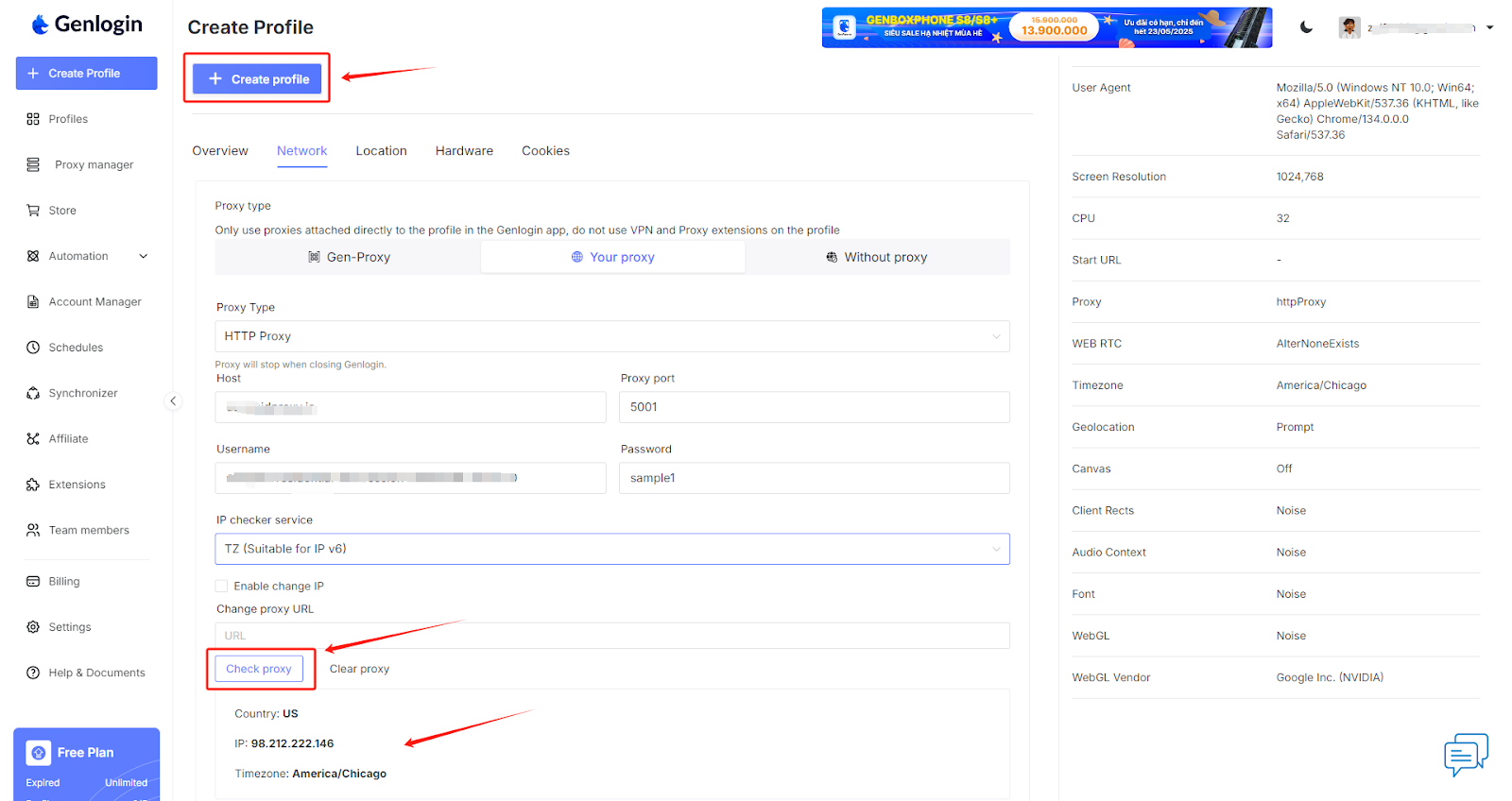
### **Step 4: Check proxy connection**
After configuration, click **【Check proxy】** to test the proxy connection.\
If everything works correctly, detailed proxy info will be displayed. Then click **【Create profile】** to save the proxy settings.
### **Step 5: Start using the proxy**
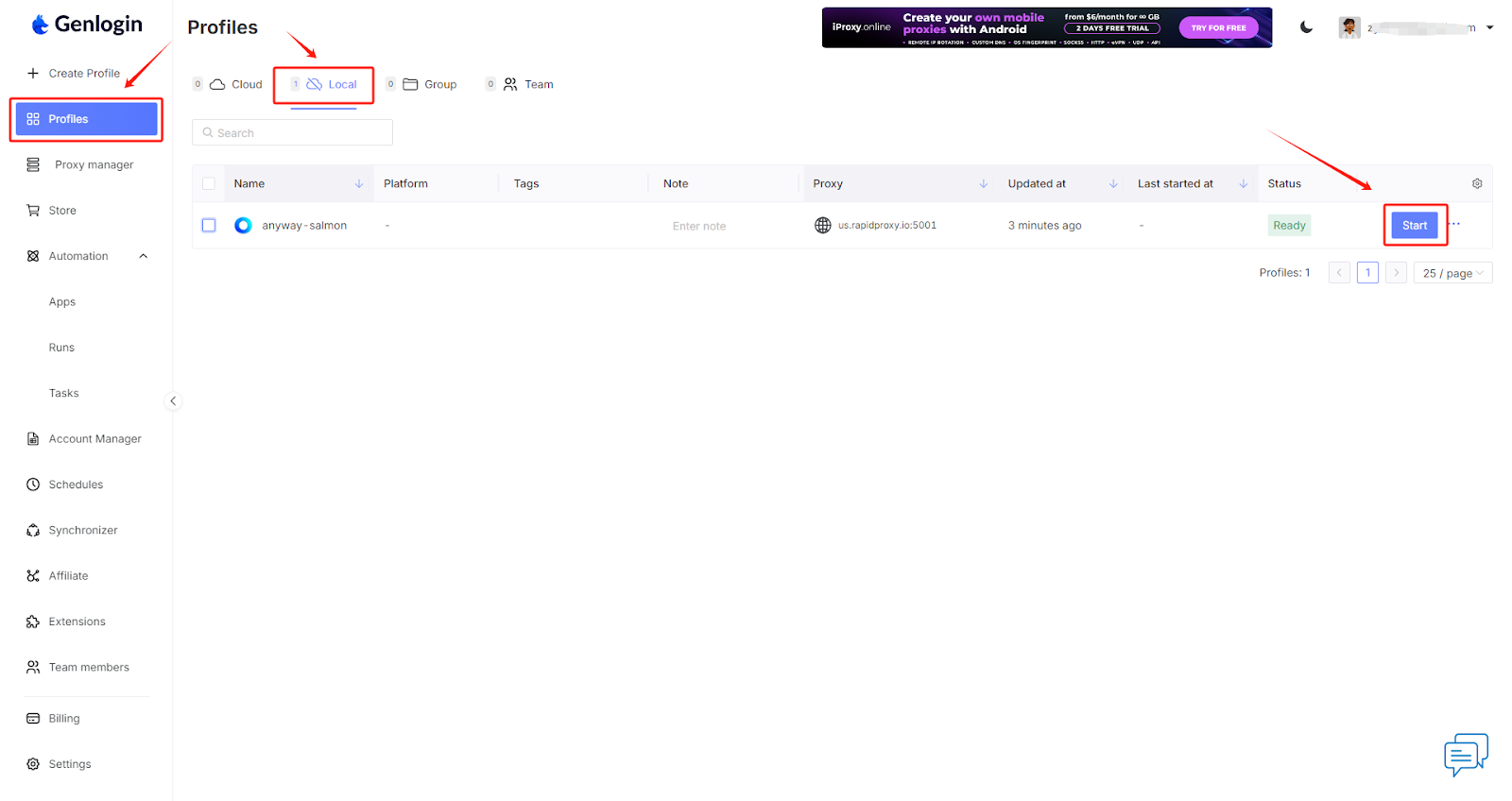
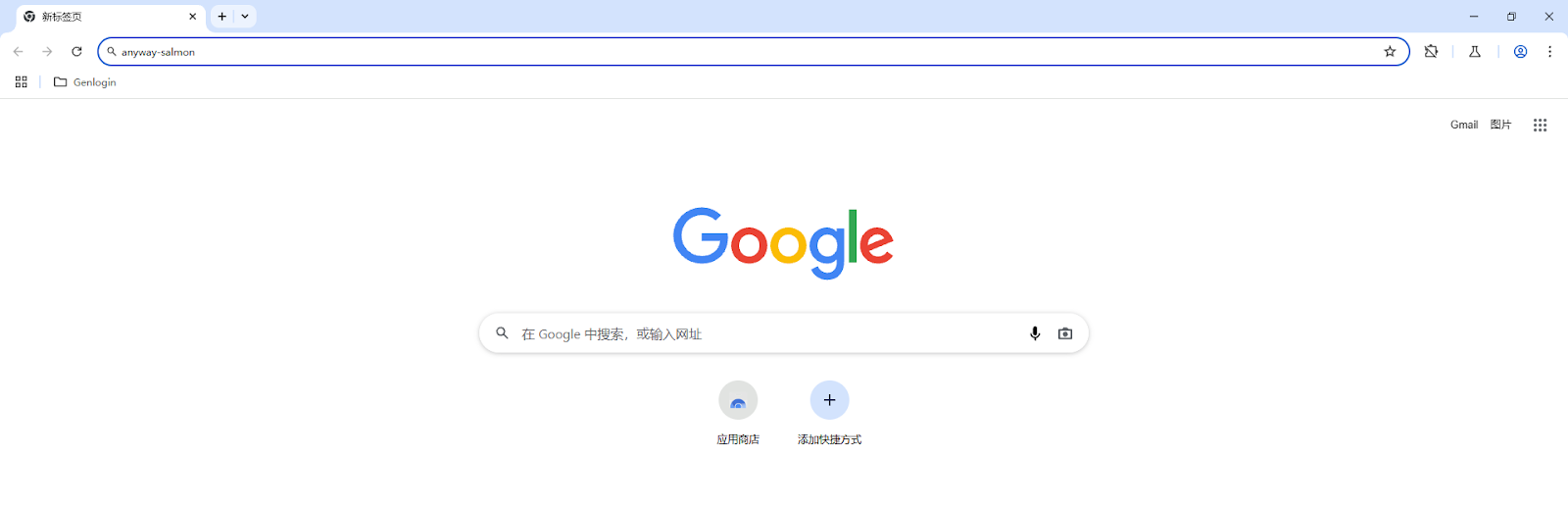
Return to the **【Profiles】** homepage, locate the newly created local profile **【Local】**, and click **【Start】** to launch the browser environment.\
Now you can securely and stably use the internet via Genlogin with Rapidproxy.